How to Reset Instagram Password on Android, iOS, and Web: Simple Guide
Many users forget their login details or face hacking issues. Instagram is a popular app used worldwide daily. It started in 2010 and has improved features over time. Facebook bought Instagram and added login support options.
You can reset and log in using Facebook account details, too. Sometimes users lose access to email or phone details. In this case, Users need to Reset the Instagram Password steps, which becomes very important here.
Key Takeaways:
- Resetting an Instagram Password works using the app or website.
- Account recovery possible without email or phone details.
- Strong security steps help protect the account from hackers.
Reset Instagram Password Using App or Website
Open the Instagram app or website on your device first. Tap “Forgot password” or “Get help logging in”. Enter your username, email, or phone number carefully.
Using email or phone works better than username sometimes. Tap continue or send login link option now.
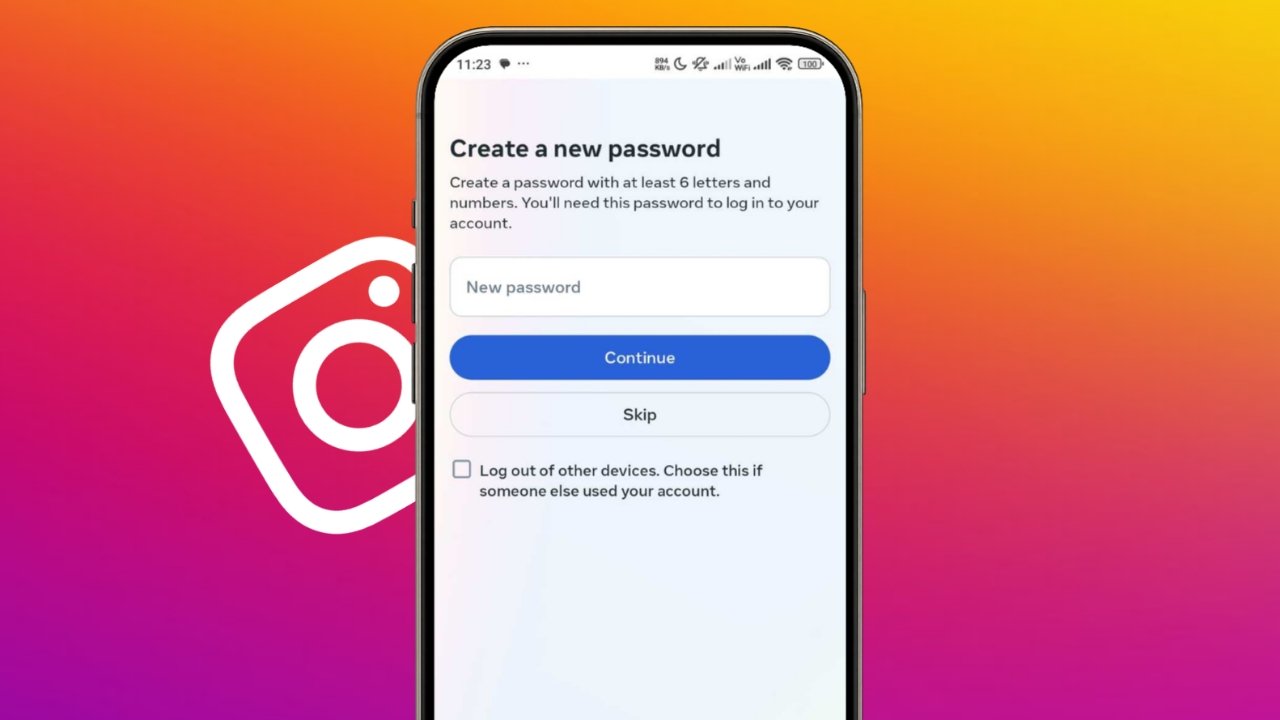
You will receive a reset link or code. Open an email or a message sent by the Instagram service. Click the reset link or enter the code correctly. Now, create a strong new password for the account.
Type the password again to confirm it properly. Tap the reset button to finish the password changing process.
After this, you will log in to your account. On Android and iPhone, steps are almost always the same. Using a password manager helps save passwords safely.
Reset Without Email or Phone
This works when a hacker changes your account information details. Click on the “Get help logging in” option available on the login screen.
Enter your username and select help options carefully. Now, here you need to select the “My account was hacked” thing from the list.
Follow instructions for the video selfie verification process. Instagram checks your identity using your face for confirmation. Then it sends a reset link to your new email.
You can also try using trusted old devices. Instagram trusts devices used before for login attempts. This may help bypass extra security checks easily.
If the account is linked, use the Facebook login option. If Facebook details are forgotten, follow the recovery steps again.
Improve Security
Go to settings and open the security section inside the app. Tap the password option and enter the current password first. Now type a new password and save the changes properly.
You can also change your email address easily. Open the profile and go to the edit profile section. Enter a new email under private information settings.
Verify email using a link sent by the Instagram service. Now use a new email for future password resets.
Follow these security tips to protect your account:
- Enable two-factor authentication using authenticator apps.
- Save backup recovery codes in a safe physical place.
- Use different emails for login and recovery purposes.
- Link accounts using the Meta Accounts Center feature.
If a hacker deletes an account, data may be lost forever. Photos and videos may not be recovered online again. Use Wondershare Recoverit to scan local storage files. It helps recover original media from a phone or a computer.
Android: Reset Password
The End Note
Resetting an Instagram Password is simple when the steps are followed carefully. Users can recover accounts using app or website methods.
Security tips help protect accounts from future hacking problems. Keep backup data safe to avoid losing important media.