
Background noise can make even a short phone call difficult to understand. Traffic, people talking nearby, a running fan, or noise from a café can easily reach the microphone along with your voice.
Apple’s Voice Isolation feature is designed for situations like these. It gives priority to your voice while reducing surrounding sounds so the person on the other end can hear you more clearly.
If you are looking for How to Turn On Voice Isolation on iPhone, you can enable it from Control Center while using a supported calling or recording app. It works with regular phone calls, FaceTime, certain third-party apps, and supported recording apps on newer iOS versions.
What Is Voice Isolation on iPhone?
Voice Isolation is a microphone mode available on supported iPhones and iPads.
Instead of allowing all surrounding sounds to pass through normally, it focuses more strongly on your voice and reduces unwanted background noise.
It can be useful when you are:
- Walking near traffic
- Taking a call in a café
- Sitting near a fan or air conditioner
- Working in a busy office
- Talking while other people are nearby
- Recording your voice in a noisy place
Voice Isolation does not guarantee that every background sound will disappear completely. Its main purpose is to make your voice easier for the other person to hear.
Which iPhones Support Voice Isolation?
Voice Isolation is available on:
- iPhone XR
- iPhone XS and XS Max
- Newer supported iPhone models
Supported iPads include:
- iPad 8th generation and later
- iPad Pro 11-inch models
- iPad Pro 12.9-inch 3rd generation and later
- iPad Pro 13-inch
- iPad Air 3rd generation and later
- iPad mini 5th generation and later
Older devices may not show Voice Isolation in microphone controls.
Which iOS Version Do You Need?
The required iOS version depends on where you want to use the feature.
FaceTime and Supported Third-Party Apps
Voice Isolation became available for FaceTime and supported third-party calling apps with iOS 15.
Regular Phone Calls
Apple added Voice Isolation support for regular cellular phone calls with iOS 16.4.
Recording Apps
On iOS 26 or later, Voice Isolation can also be available in supported audio and video recording apps, including Voice Memos.
Automatic Mic Mode
Automatic Mic Mode is available on newer iOS versions starting with iOS 18.
Keeping your iPhone updated is the easiest way to make sure you have the latest microphone controls available for your device.
How to Turn On Voice Isolation on iPhone During a Call
Voice Isolation is not a normal switch that you enable permanently from the Settings app.
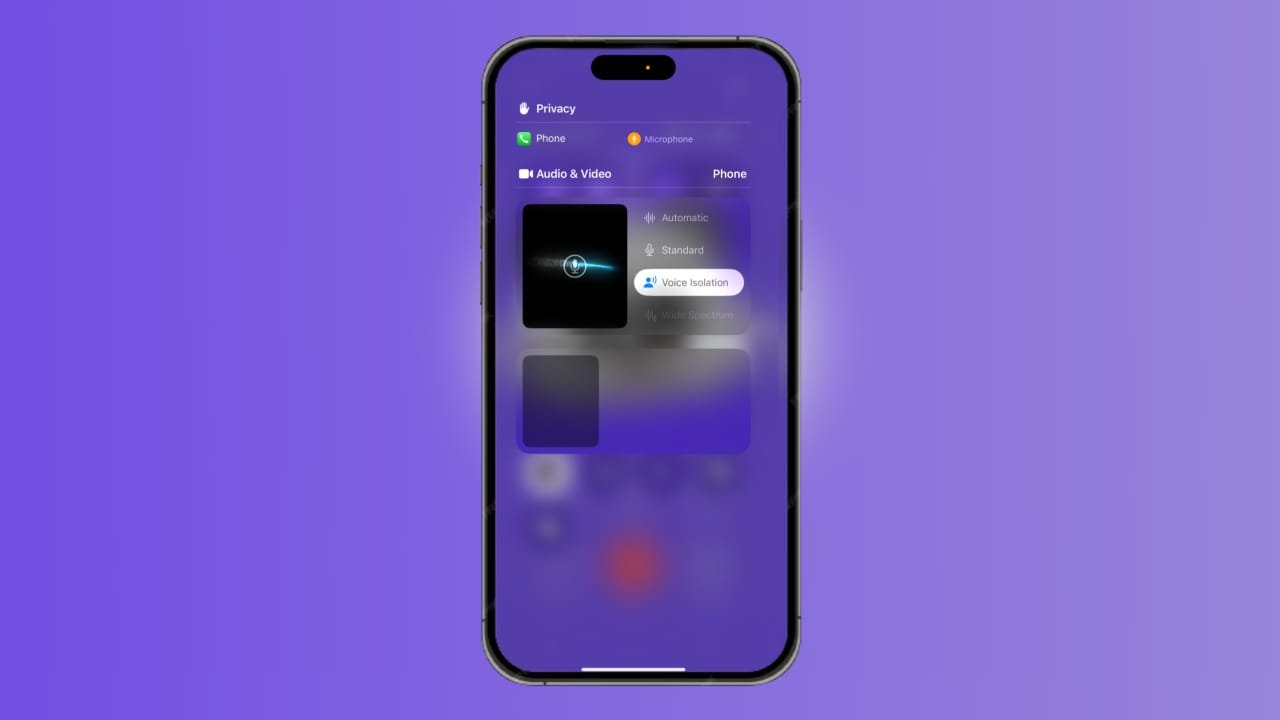
You access it through Control Center while a supported app is using the microphone.
Follow these steps:
- Start a phone call, FaceTime call, or supported recording.
- Swipe down from the top-right corner of the screen to open Control Center.
- Tap the controls for the app currently using the microphone.
- Look under Audio & Video.
- Select Voice Isolation.
- Close Control Center and continue your call.
Voice Isolation will now give more priority to your voice while reducing surrounding noise.
The exact wording can look slightly different depending on your iOS version and the app you are using.
Turn On Voice Isolation During FaceTime
Voice Isolation can be especially useful during FaceTime calls when you are somewhere noisy.
During a FaceTime call:
- Open Control Center.
- Tap the FaceTime controls at the top.
- Open the microphone options.
- Select Voice Isolation.
- Return to your FaceTime call.
The other person should now hear less of the distracting sound around you.
If you later want more of the surrounding environment to be heard, you can switch to another available microphone mode.
Use Voice Isolation During Regular Phone Calls
Voice Isolation also works during normal calls through the Phone app on supported iPhones running iOS 16.4 or later.
During a call:
- Swipe down to open Control Center.
- Tap the Phone controls.
- Open Audio & Video.
- Select Voice Isolation.
- Return to your call.
This can be useful when calling from a road, railway station, crowded room, café, or other noisy place.
If the option does not appear, check your iPhone model and iOS version.
Use Voice Isolation in Voice Memos
Voice Isolation is no longer limited to calls.
Starting with iOS 26, supported recording apps can also use the feature.
To use it with a supported recording app:
- Open the recording app.
- Start or prepare your recording.
- Open Control Center.
- Tap the controls for the active app.
- Open the microphone options.
- Choose Voice Isolation.
This can help reduce surrounding noise when recording speech.
Support can vary between apps, so every recording application may not offer the same microphone modes.
Does Voice Isolation Work With WhatsApp and Other Apps?
Voice Isolation can work with supported third-party calling apps.
However, support depends on the individual app.
The easiest way to check is to start a call in that app and then open Control Center.
If Voice Isolation appears in the app’s audio controls, you can use it.
If the option is missing, check that:
- Your iPhone supports Voice Isolation
- iOS is updated
- The app is updated
- The app supports Apple’s microphone modes
Do not assume every calling or recording app will offer the feature.
Standard vs Voice Isolation vs Wide Spectrum
Your iPhone can show different microphone modes depending on the app and type of call.
Standard
Standard uses normal microphone processing.
It is suitable when you do not need stronger background-noise filtering.
Voice Isolation
Voice Isolation prioritizes your voice and reduces surrounding noise.
It is usually the best choice when you are speaking from a noisy environment.
Wide Spectrum
Wide Spectrum allows more of the surrounding sound to be heard.
This can be useful when several people are speaking near one device or when you deliberately want someone to hear music or other environmental sounds.
Wide Spectrum is not available for every type of call, including normal cellular phone calls.
Automatic
Automatic Mic Mode lets the iPhone choose an appropriate microphone mode depending on the situation.
For example, the phone may use stronger voice filtering in one situation while using a more standard microphone mode in another.
Does Voice Isolation Stay Enabled?
You do not necessarily need to turn Voice Isolation on again after every call.
The microphone mode you choose can remain selected for that particular app until you change it.
This also means that choosing Voice Isolation in one app does not automatically force every other supported app to use the same setting.
For example, you may prefer Voice Isolation for phone calls but use Standard in another app.
When Should You Use Voice Isolation?
Voice Isolation is most useful when your voice needs to be the main sound.
Good situations include:
- Calls from a busy street
- Online meetings from a café
- Calls while other people are talking nearby
- Conversations near a fan or air conditioner
- Calls from a busy office
- Voice recordings in noisy rooms
If you actually want the listener to hear the surrounding environment, Standard or Wide Spectrum may be a better choice where available.
Why Can’t I Find Voice Isolation?
If you followed the steps for How to Turn On Voice Isolation on iPhone but the option is missing, check a few things.
Check Your iPhone Model
Voice Isolation requires a supported iPhone such as the iPhone XR, iPhone XS, or newer.
Older models may not support the feature.
Check Your iOS Version
Different uses have different software requirements.
- iOS 15 or later for FaceTime and supported third-party calls
- iOS 16.4 or later for regular phone calls
- iOS 18 or later for Automatic Mic Mode
- iOS 26 or later for supported recording apps
Start a Call First
The microphone controls usually appear while a supported app is actively using the microphone.
If you open Control Center from the Home Screen without starting a call or recording, you may not see the option.
Update the App
Third-party apps need to support Apple’s microphone modes.
Update the app and try again.
Restart Your iPhone
If Voice Isolation normally appears but suddenly disappears, restart the iPhone and test it again.
Voice Isolation Is On but My Voice Still Sounds Bad
Voice Isolation cannot fix every microphone problem.
If people say your voice sounds very quiet, distorted, or muffled even when you are somewhere silent, check the physical microphones on your iPhone.
Remove any case or accessory that may be covering a microphone opening.
Also check for dirt or debris around the microphone areas.
You can test the microphone by opening Voice Memos, recording yourself speaking, and listening to the recording.
If your voice sounds poor even in a quiet room, the problem may be related to the microphone itself rather than Voice Isolation.
Does Voice Isolation Work With AirPods?
Voice Isolation can also work in supported situations while compatible AirPods are connected.
Its behavior can depend on:
- AirPods model
- iPhone model
- iOS version
- Type of call
- App being used
The feature can help reduce sounds such as wind and background conversation so your voice is easier for the listener to hear.
Not every older Bluetooth headset or AirPods model should be expected to provide exactly the same experience.
Voice Isolation vs Noise Cancellation
Voice Isolation and Active Noise Cancellation are different features.
Voice Isolation mainly changes what the person on the other end hears from your microphone.
Active Noise Cancellation on supported headphones mainly reduces the outside noise that you hear through your earbuds.
You can therefore use both features during the same call for different purposes.
Is Voice Isolation Always Better?
No.
Voice Isolation is useful when one person’s voice should be the main sound, but there are situations where you may want surrounding audio to remain audible.
For example, if several people are sitting around one iPhone during a call, stronger voice filtering may not be ideal.
The same applies if you want the other person to hear music, an event, or environmental sounds around you.
Choose the microphone mode according to what you want the listener to hear.
Final Words
Once you understand How to Turn On Voice Isolation on iPhone, switching microphone modes takes only a few seconds. Start your call or supported recording, open Control Center, tap the controls for the active app, and select Voice Isolation.
The feature is particularly useful when traffic, conversations, fans, or other surrounding sounds make your voice difficult to hear.
If the option is missing, check your iPhone model, iOS version, and whether the app currently supports Apple’s microphone modes.
For people who regularly move between quiet and noisy environments, Automatic Mic Mode can also be useful on supported iPhones.
Sources
- Apple Support — Use Voice Isolation, Wide Spectrum, or Automatic Mic Mode on iPhone and iPad
- Apple Support — Change FaceTime audio settings on iPhone
- Apple Support — Record audio and video on iPhone
- Apple Support — If the microphones on your iPhone aren’t working
Last verified: August 26, 2026