
Duplicate photos can quietly take up a surprising amount of storage, especially if you take several shots of the same scene, save images from apps, or move photos between devices.
If you are looking for how to remove duplicate photos on iPhone, you usually do not need to install a cleaner app. The Photos app can automatically identify duplicate photos and videos and let you merge them while keeping the best available copy.
The exact layout can vary slightly between iOS versions, but on recent iPhones you can find Apple’s duplicate-detection feature inside the Collections section of Photos.
Find Duplicate Photos on iPhone
Start with the built-in Photos app before trying any third-party cleaner.
- Open the Photos app.
- Tap Collections.
- Scroll down to Utilities.
- Tap Duplicates.
- Review the duplicate photos and videos found by your iPhone.
The Duplicates option only appears when the Photos app has detected duplicate items in your library.
You may see exact copies as well as photos that contain the same image but have slightly different metadata, resolutions, or file formats.
Merge Duplicate Photos on iPhone
When you find a duplicate group, you can merge it instead of manually deciding which copy to delete.
- Open Photos > Collections > Utilities > Duplicates.
- Find the duplicate group you want to clean up.
- Tap Merge beside it.
- Confirm by tapping Merge Items.
When Photos merges a duplicate group, it keeps one version and combines the highest image quality with relevant photo data where possible.
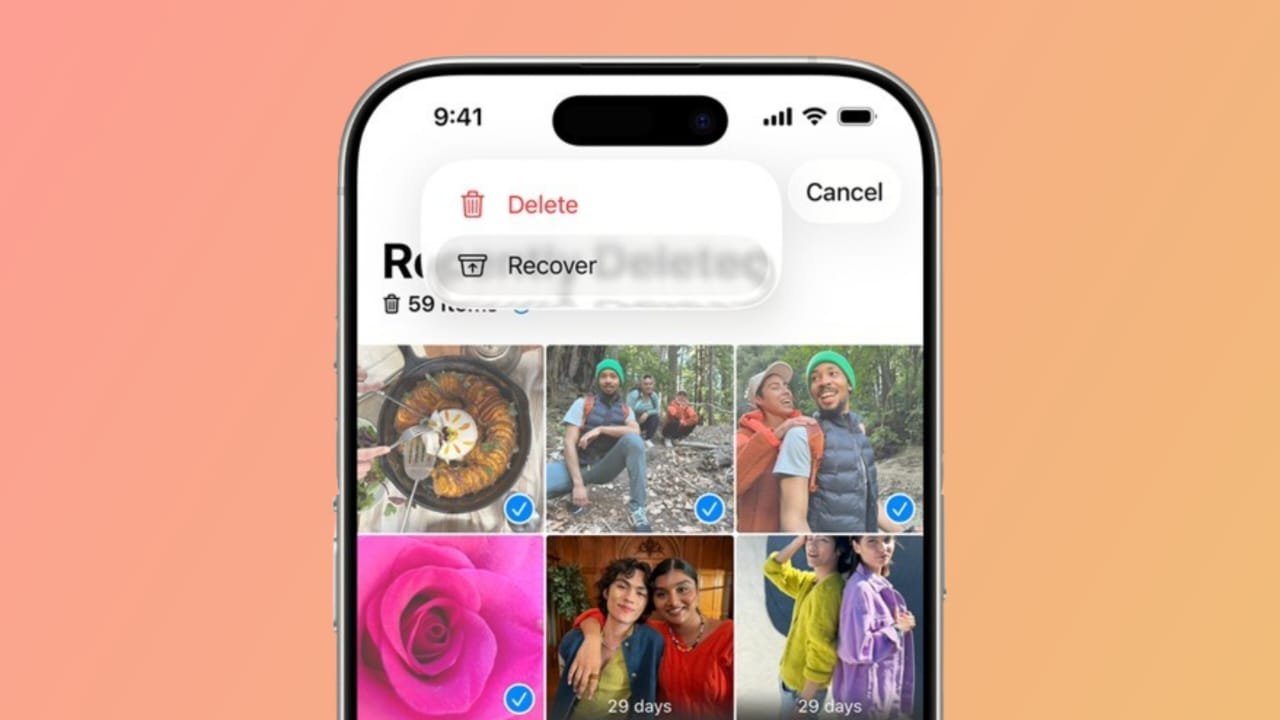
The extra copies are moved to Recently Deleted.
For most people searching for how to remove duplicate photos on iPhone, this is the best place to start because you can clean up obvious duplicates without relying on another app.
Merge Several Duplicate Photos at Once
If you have a large library, merging every duplicate group individually can take a long time.
You can select multiple groups instead.
- Open the Duplicates collection.
- Tap Select.
- Choose the duplicate groups you want to merge.
- Tap Merge.
- Confirm your choice.
If you are comfortable with everything Photos has detected, you may also see an option to select multiple groups at once.
I would still check a few groups manually before merging a large number of photos, especially if the library contains edited images or important older pictures.
What Happens After You Merge Duplicates?
The extra copies are not immediately erased forever.
They are moved to the Recently Deleted collection.
Photos stored there normally remain recoverable for up to 30 days unless you permanently delete them earlier.
This gives you some time to restore a photo if you change your mind.
If you urgently need storage space, you can review Recently Deleted and permanently remove the photos you are sure you no longer need.
Be careful with this step because permanently deleted photos may no longer be recoverable.
Why Is the Duplicates Option Missing?
This is one of the most common problems.
If you are trying to understand how to remove duplicate photos on iPhone but cannot find the Duplicates collection, it does not automatically mean something is wrong with your phone.
There are a few possible reasons.
Your iPhone Has Not Found Any Duplicates
The Duplicates collection only appears after Photos identifies duplicate photos or videos.
If none have been found, you will not see the option.
Photos Is Still Analyzing Your Library
Duplicate detection does not always happen immediately.
Your iPhone may need time to analyze the photo library in the background.
Apple says duplicate detection can take place while the iPhone is locked and connected to power.
If you recently:
- transferred a large photo library
- imported many pictures
- restored an iPhone backup
- updated iOS
- enabled iCloud Photos
leave the phone connected to power for a while and check again later.
Similar Photos Are Not Always Duplicates
The Photos app is good at finding true duplicates, but it will not necessarily group every similar-looking image.
For example, you might have:
- several selfies taken a few seconds apart
- multiple photos of the same object
- edited and original versions
- screenshots of the same page
- images downloaded from WhatsApp or other apps
- burst photos
These files may look almost identical to you but still be treated as separate photos.
For these, manual review is usually better.
Check Burst Photos Separately
Burst photos contain several frames captured within a very short period.
They are not technically duplicates because each photo can contain small differences.
To clean them up:
- Open the burst in Photos.
- Review the individual frames.
- Keep the shots you prefer.
- Remove the ones you no longer need.
Do not automatically delete all but one without checking them. A different frame may have better focus, expression, or timing.
Review Screenshots and Downloaded Images
Screenshots are another common source of clutter.
Old payment screenshots, social media posts, app screens, tickets, and temporary information can stay in the library long after you need them.
Use the Photos app’s Collections or search options to find screenshots and downloaded images, then remove the ones you no longer need.
This will often free more space than focusing only on exact duplicates.
Does Removing Duplicates Affect iCloud Photos?
Yes, this is important.
If iCloud Photos is enabled, changes to your library can sync across devices using the same Apple Account.
That means deleting a photo on your iPhone may also remove it from your other synced Apple devices.
Before deleting a large number of photos manually, make sure you understand which devices are connected to the same iCloud photo library.
The Recently Deleted collection provides a recovery period, but you should still review important photos before permanently removing them.
Do You Need a Duplicate Photo Cleaner App?
For normal duplicate cleanup, I would start with Apple’s built-in feature.
It is free, already on the iPhone, and does not require giving another company access to your full photo library.
Third-party cleaner apps can sometimes help with things Apple does not classify as exact duplicates, such as:
- very similar photos
- large videos
- repeated screenshots
- blurry images
But they are optional.
If you decide to use one, check:
- who developed the app
- what Photos permissions it requests
- whether it uploads photos to a server
- subscription pricing
- App Store reviews
- privacy information
Do not install an unknown cleaner simply because it promises to free a large amount of storage.
How to Free Storage After Removing Duplicates
Merging or deleting photos does not always free the storage immediately because removed items can remain in Recently Deleted.
If storage is urgently needed:
- Open Photos.
- Open Recently Deleted.
- Review the photos carefully.
- Permanently delete only the items you are sure you do not need.
If storage is not urgent, keeping the normal recovery period is safer.
Best Way to Clean Up Duplicate Photos
I would use this order:
- Open Photos > Collections > Utilities > Duplicates.
- Merge the duplicate groups detected by Apple.
- Review similar photos manually.
- Check burst photos.
- Review screenshots and downloaded images.
- Check Recently Deleted only if you urgently need storage.
This approach keeps the cleanup simple and reduces the chance of accidentally deleting something important.
Final Words
The easiest answer to how to remove duplicate photos on iPhone is to start with the built-in Duplicates feature in the Photos app. It can identify duplicate photos and videos, merge them, and move the extra copies to Recently Deleted without requiring another app.
If the Duplicates collection does not appear, give your iPhone some time to finish analyzing the photo library while it is locked and connected to power.
For photos that only look similar, review them manually instead of treating them as exact duplicates. And if you use iCloud Photos, remember that deleting pictures can affect your other synced Apple devices as well.
Sources
- Apple Support — Find and merge duplicate photos and videos on iPhone
- Apple Support — Merge duplicate photos and videos on iPhone
- Apple Support — Delete photos on iPhone or iPad
- Apple Support — iCloud Photos
Last verified: August 26, 2026