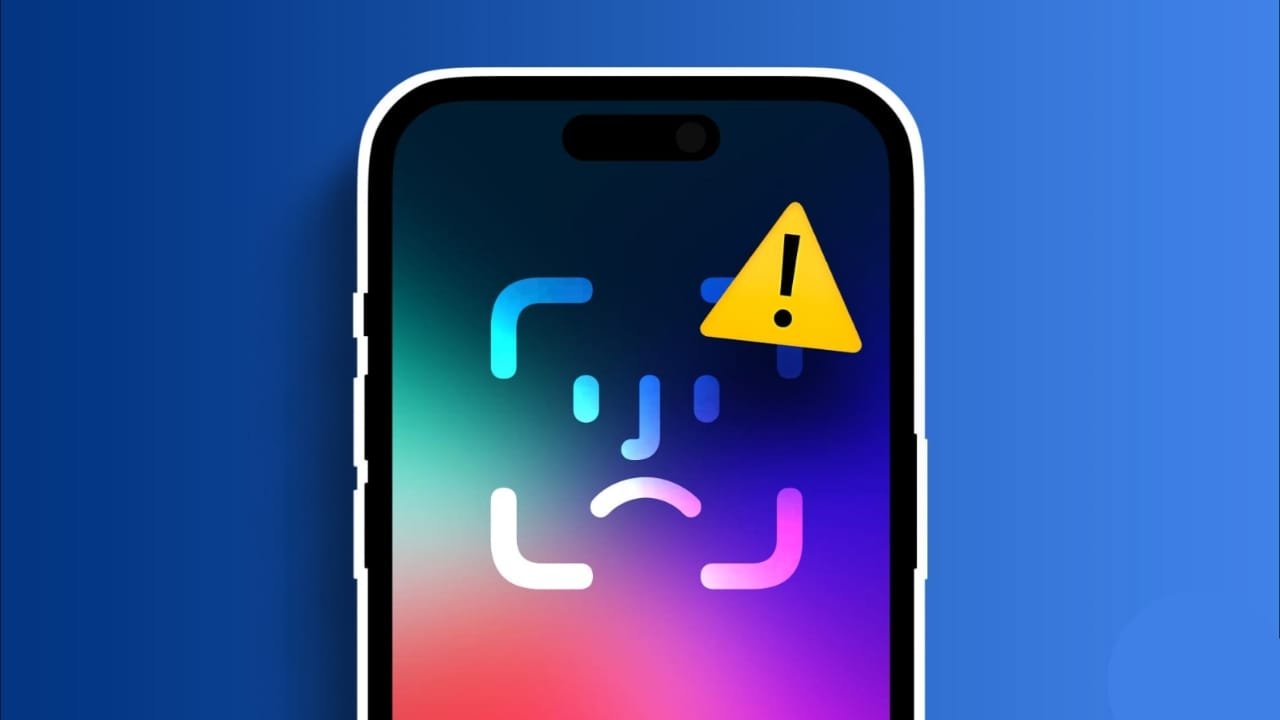

If Face ID is not working on iPhone, you may suddenly find yourself entering the passcode every time you unlock the phone, approve a payment, or sign in to an app.
The problem is not always serious. A dirty TrueDepth camera, something covering your face, an incorrect Face ID setting, or a temporary software issue can stop Face ID from recognizing you properly.
Before assuming there is a hardware problem, try these fixes one by one.
Check If the Passcode Request Is Normal
Your iPhone asking for a passcode does not always mean Face ID has stopped working.
Apple requires you to enter the passcode in certain situations, including after restarting the iPhone or after several unsuccessful Face ID attempts.
If Face ID starts working normally again after entering the passcode once, there may be nothing to fix.
Clean the TrueDepth Camera
Start by checking the camera and sensor area at the top of your iPhone screen.
Dust, fingerprints, a damaged screen protector, or a case covering part of the TrueDepth camera can interfere with Face ID.
Use a clean, soft lint-free cloth to wipe the area gently.
Also check whether:
- your case is covering part of the camera
- the screen protector is incorrectly positioned
- dirt has collected around the camera area
- anything else is blocking the sensors
After cleaning the area, lock your iPhone and try Face ID again.
Check Face ID Settings
If Face ID is not working on iPhone for only one feature, such as Apple Pay or unlocking the phone, check your Face ID settings.
Open:
Settings > Face ID & Passcode
Enter your passcode and make sure Face ID is properly set up.
You should also check whether Face ID is enabled for the feature you are trying to use.
Depending on your iPhone and iOS version, you may see options such as:
- iPhone Unlock
- Wallet & Apple Pay
- Password AutoFill
- App Store purchases
- supported third-party apps
For example, if Face ID unlocks your phone but does not work with Apple Pay, the problem may simply be that Wallet & Apple Pay is turned off in Face ID settings.
Make Sure Your Face Is Clearly Visible
Face ID needs a clear view of your eyes, nose, and mouth.
Recognition can become less reliable if part of your face is covered or the phone is positioned too far away.
Check for things such as:
- a mask
- sunglasses
- clothing covering your face
- hair blocking part of your face
- holding the phone too far away
Try holding the iPhone at a comfortable distance in front of your face and look directly at the screen.
On newer supported iPhones, Face ID can also work while the phone is in landscape orientation. Older models may require the iPhone to be held in portrait orientation.
Remove Sunglasses and Try Again
Face ID works with many sunglasses, but some lenses can block the infrared light used by the TrueDepth camera.
If Face ID works normally without your sunglasses but struggles when you wear them, the glasses may be causing the problem.
Remove them and try unlocking the iPhone again.
This is especially worth checking if you use Face ID with a mask.
Check Face ID With a Mask
Supported iPhones can use Face ID while you are wearing a mask.
To check the feature, open:
Settings > Face ID & Passcode
Look for Face ID with a Mask and make sure it is enabled if you need it.
The iPhone pays more attention to the area around your eyes when this feature is being used.
If you regularly wear glasses, you may also be able to add them to improve recognition.
However, Face ID with a Mask may not work properly with sunglasses because your eye area needs to remain visible.
Restart Your iPhone
A simple restart can fix temporary software problems.
Turn off your iPhone, wait a few seconds, and turn it back on.
After restarting, the iPhone will ask for your passcode before Face ID becomes available again. This is normal.
Enter the passcode once, lock the phone, and test Face ID again.
Update iOS
If Face ID has become unreliable or stopped working after a software problem, check for an iOS update.
Go to:
Settings > General > Software Update
Download and install any available update.
After the update finishes, restart the iPhone and test Face ID again.
Keeping iOS updated can fix bugs and compatibility problems that affect system features.
Set Up an Alternate Appearance
Face ID can adapt to gradual changes in your appearance, but a noticeably different look may sometimes make recognition harder.
You can add an alternate appearance.
Open:
Settings > Face ID & Passcode > Set Up an Alternate Appearance
Follow the instructions and scan your face again.
This can help if your appearance regularly changes enough that Face ID sometimes struggles to recognize you.
Don’t Turn Off Require Attention as Your First Fix
You may find advice online suggesting that you disable Require Attention for Face ID.
I would not use this as one of the first troubleshooting steps.
Require Attention adds extra security by checking that your eyes are open and that you are looking at the iPhone before it unlocks.
For most users, leaving it enabled is the better choice.
If you need to review the setting for accessibility reasons, go to:
Settings > Accessibility > Face ID & Attention
Try the other fixes in this guide before changing this security option.
Reset Face ID
If none of the earlier fixes work, remove the current Face ID setup and scan your face again.
Go to:
Settings > Face ID & Passcode
Then:
- Tap Reset Face ID.
- Tap Set Up Face ID.
- Position your face inside the frame.
- Move your head as instructed.
- Complete both Face ID scans.
Once setup is finished, lock your iPhone and test Face ID again.
For many software or recognition-related problems, setting up Face ID again can solve the issue.
Face ID Not Working After Screen or Camera Repair
If Face ID is not working on iPhone after a screen replacement, camera repair, drop, or other physical damage, the issue may involve the TrueDepth camera system.
Face ID relies on several components working together, so physical damage or an improper repair can affect recognition.
Watch for signs such as:
- Face ID cannot be set up
- the TrueDepth camera is not working properly
- “Face ID is not available” appears repeatedly
- Face ID stopped working immediately after a repair
- resetting Face ID does not help
In these situations, repeatedly changing settings is unlikely to solve a hardware problem.
Contact Apple Support or an authorized service provider for inspection.
Unlock iPhone With Apple Watch
If Face ID regularly struggles because you wear a face covering and you own an Apple Watch, you may have another option.
Compatible iPhones can use a nearby unlocked Apple Watch to help unlock the phone in supported situations.
Open:
Settings > Face ID & Passcode > Unlock with Apple Watch
Enable your Apple Watch if the option is available.
Keep in mind that unlocking with Apple Watch does not replace Face ID for every action. Features such as Apple Pay and some protected apps may still require normal authentication.
Related Article: How to Use Apple Watch on iPhone: Simple Mirroring Guide
When Should You Contact Apple Support?
You should consider professional help if:
- you cannot set up Face ID again
- Face ID is repeatedly unavailable
- the TrueDepth camera appears damaged
- Face ID stopped working after a drop or repair
- resetting Face ID does not solve the problem
- the camera itself is behaving abnormally
At that point, the issue may be related to hardware rather than an iOS setting.
Final Words
When Face ID is not working on iPhone, begin with the simple checks. Clean the TrueDepth camera, make sure nothing is covering your face, check Face ID settings, restart the iPhone, and install any available iOS updates.
If Face ID still struggles, try setting up an alternate appearance or reset Face ID completely and scan your face again.
Also remember that an occasional passcode request is normal and does not automatically mean Face ID has failed.
If you cannot set up Face ID at all or the problem started after physical damage or a repair, contact Apple Support instead of repeatedly resetting the device.
Sources
- Apple Support — If Face ID isn’t working on your iPhone or iPad Pro
- Apple Support — Set up Face ID on iPhone
- Apple Support — Change Face ID and attention settings on iPhone
- Apple Support — Use Face ID while wearing a mask
- Apple Support — Unlock iPhone with Apple Watch
Last verified: August 26, 2026