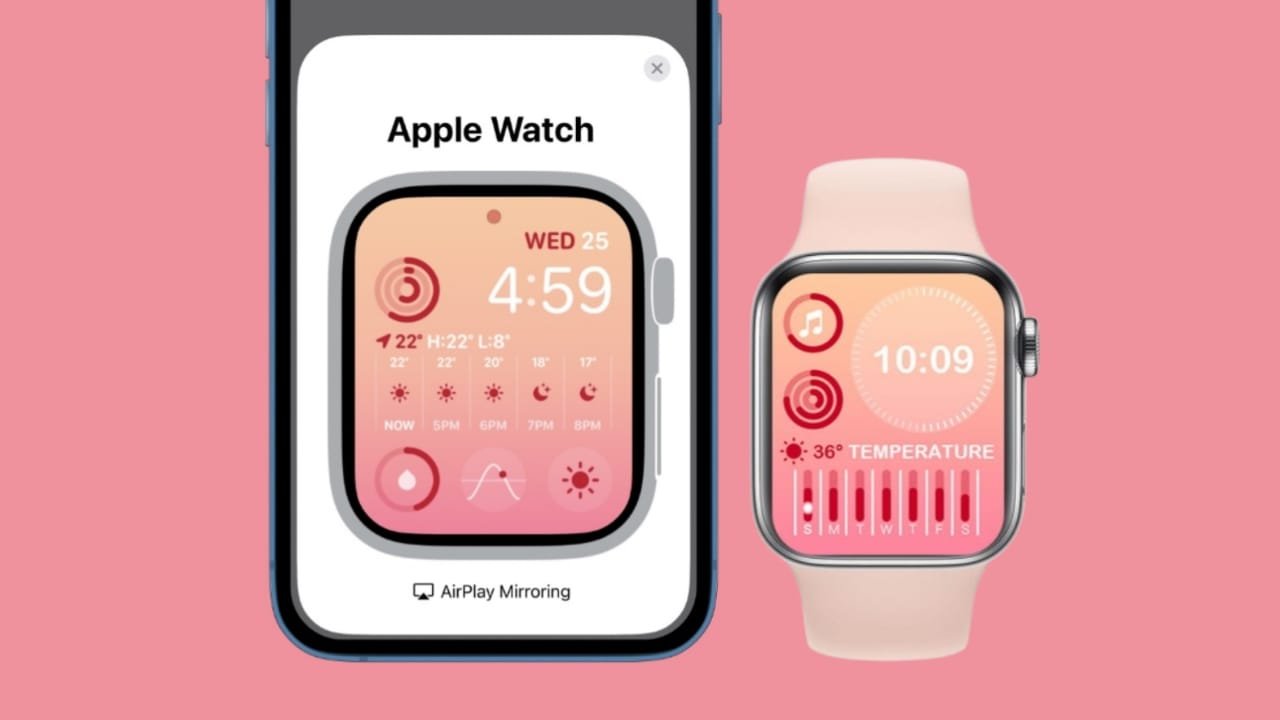

Many Apple users are unaware that their smartwatch can be controlled from an iPhone. Apple provides a feature called Apple Watch Mirroring that makes this possible. With this feature, the watch screen appears directly on the paired iPhone display.
Users can interact with the Apple Watch through the iPhone touchscreen. The larger iPhone display can make navigation easier to see and use, especially for people who benefit from accessibility features.
Related Article: How to Turn On Voice Isolation on Apple iPhone and iPad in 2026
Key Takeaways
- Apple Watch Mirroring lets you see and control a compatible Apple Watch from its paired iPhone.
- The feature is available on Apple Watch Series 6 and later and Apple Watch Ultra models.
- Apple Watch Mirroring is not available on Apple Watch SE.
- It works with iPhone accessibility features such as Voice Control and Switch Control.
Requirements for Apple Watch Mirroring
Before using Apple Watch Mirroring, make sure your Apple Watch is compatible and paired with the iPhone you want to use.
Apple Watch Mirroring is available on Apple Watch Series 6 and later. Apple also supports the feature on Apple Watch Ultra models.
Apple Watch SE models do not support Apple Watch Mirroring.
Your Apple Watch must be paired with the iPhone. You cannot use Apple Watch Mirroring to control a watch that is paired with another person’s iPhone.
For the best compatibility and security, keep both the iPhone and Apple Watch updated to the latest software versions available for your devices.
Related Article: How to Set Up and Use Tap to Pay on iPhone in 2026: Complete Guide
Steps to Enable Apple Watch Mirroring
Apple places Apple Watch Mirroring inside the Accessibility settings on the paired iPhone.
Follow these steps:
- Open Settings on your iPhone.
- Tap Accessibility.
- Select Apple Watch Mirroring.
- Turn on Apple Watch Mirroring.
An image of your Apple Watch display will appear on the iPhone screen.
You can then interact with the mirrored watch display using gestures on your iPhone.
Use Accessibility Shortcut for Faster Access
You can also set up Accessibility Shortcut to open Apple Watch Mirroring more quickly.
Go to:
Settings → Accessibility → Accessibility Shortcut
Select Apple Watch Mirroring if it is available in the shortcut list.
After setting it up, triple-click the iPhone’s Side button or Home button, depending on your iPhone model, to quickly access the selected accessibility feature.
To stop Apple Watch Mirroring, tap the Close (X) button on the mirrored window.
Related Article: How to Share Live Locations Using Apple Maps on iPhone, iPad, Mac, and Apple Watch
Controlling Apple Watch Through iPhone
Once mirroring is active, you can interact with the Apple Watch display directly from the iPhone.
Common Controls
- Scroll: Swipe up or down on the mirrored display.
- Move between screens: Swipe left or right.
- Press the Digital Crown: Tap the Digital Crown shown on the mirrored watch.
- Press the Side button: Tap the Side button shown on the mirrored watch.
- Use Siri: Touch and hold the Digital Crown on the mirrored display.
- Use the Action button: On Apple Watch Ultra models, tap the Action button shown on the left side of the mirrored watch.
The Digital Crown and Side button continue to perform the actions associated with those controls on Apple Watch.
For example, the Digital Crown can open the Home Screen or App Switcher depending on how it is pressed, while the Side button provides access to Control Center and other supported actions.
Advantages of Apple Watch Mirroring
Apple Watch Mirroring is primarily an accessibility feature.
Some users may find the Apple Watch display difficult to see or interact with because of its small size. Mirroring allows them to control the watch from the larger iPhone touchscreen.
Apple Watch Mirroring also works with accessibility features and input methods available on iPhone.
These include:
- Voice Control
- Switch Control
- Voice commands
- Sound actions
- Head tracking
- Compatible Made for iPhone external switches
These options can provide alternative ways to control Apple Watch without relying only on taps on the small watch display.
The larger mirrored interface can also make it easier to demonstrate Apple Watch features or navigate watch apps when viewing the watch screen directly is difficult.
The End Note
Apple Watch Mirroring allows users to see and control a compatible Apple Watch from its paired iPhone.
To enable it, go to Settings → Accessibility → Apple Watch Mirroring on the iPhone and turn the feature on.
Apple Watch Mirroring is available on Apple Watch Series 6 and later and supported Apple Watch Ultra models, but it is not available on Apple Watch SE.
The feature is especially useful for accessibility because it combines the larger iPhone display with tools such as Voice Control, Switch Control, head tracking, and other supported input methods.
Sources
Apple Support — Interact with Apple Watch on your iPhone
Apple Watch User Guide — Control Apple Watch with your iPhone
Apple Support — Quickly turn accessibility features on or off on iPhone
Last verified: September 10, 2026