
Sharing your location on an iPhone can mean different things. Sometimes you only want to send where you are right now. In other situations, you may want someone to see your location as you move.
Apple provides different tools for these needs. Apple Maps can share a place, your current location, or your estimated arrival time, while Find My is better suited to continuous location sharing.
If you are wondering How to Share Live Locations Using Apple maps, it is important to understand the difference between sending a location once, sharing your ETA during a journey, and continuously sharing your location through Find My.
Share Your Live Location Using Apple Maps
For anyone trying to understand How to Share Live Locations Using Apple maps, the simplest method depends on whether you want to send your location once or keep someone updated while you are travelling.
If you only want to tell someone where you are right now, Apple Maps can share your current location.
One quick way is:
- Touch and hold the Maps app icon on your Home Screen.
- Tap Send My Location.
- Choose the person or app you want to use.
- Send the location.
This shares your location at that moment. It does not continue following you as you move.
You can also open Maps, choose a location or drop a pin, open the place card, and use the Share option.
Share a Place or Dropped Pin in Apple Maps
You do not need to be standing at a location to share it.
For example, you can send someone the location of a restaurant, hotel, office, shop, or meeting point.
To share a place:
- Open Maps.
- Search for the location you want.
- You can also touch and hold an area on the map to drop a pin.
- Open the place card.
- Tap Share.
- Choose Messages, Mail, or another available app.
The recipient receives the location you selected.
Keep in mind that a shared pin is not the same as Live Location. The pin remains at the place you sent and does not follow your movement afterward.
Share Your ETA in Apple Maps
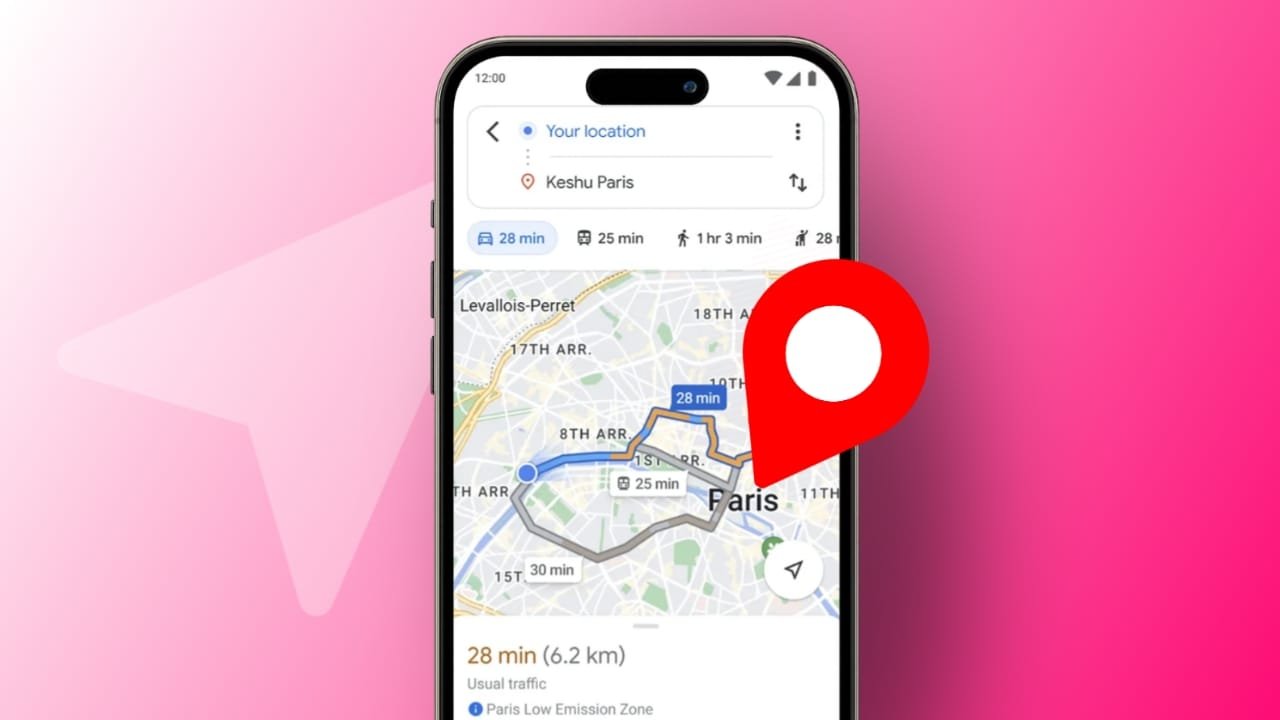
If you are travelling somewhere, Apple Maps can share your estimated time of arrival with another person.
This is useful when someone is waiting for you and wants to know when you are likely to arrive.
One useful part of learning How to Share Live Locations Using Apple maps is understanding the Share ETA feature. Instead of simply sending a fixed location, Share ETA can provide updates connected to your current journey while Maps navigation is active.
To use it:
- Open Apple Maps.
- Start directions to your destination.
- Begin navigation.
- Open the route information.
- Choose Share ETA when available.
- Select the contact you want to update.
While ETA sharing is active, the person can receive information about your journey and expected arrival.
Once the trip ends, ETA sharing for that journey also ends.
Automatically Share ETA for Regular Places
If you regularly travel to the same destination, you may also be able to automatically share your ETA with selected contacts.
This can be useful for locations such as home or work.
Open:
Maps > Profile > Places > Pinned
Choose the location and look for the Share ETA option.
You can then select people who should receive your ETA when you start navigation to that destination.
The exact menu names may vary slightly depending on your iOS version.
How to Share Live Location on iPhone
If you want another person to continue seeing your location as you move, use Find My.
Open:
Find My > People
Then:
- Tap the Add button.
- Choose Share My Location.
- Select the person.
- Tap Send.
- Choose how long you want to share your location.
Depending on the options available on your device, you may be able to share for a limited period or continue sharing until you turn it off.
This is different from sending a Maps pin because the location can continue updating while you move.
Turn On Share My Location
If location sharing is not working, first check whether it is enabled.
Open:
Find My > Me
Make sure Share My Location is turned on.
You can also check:
Settings > [your name] > Find My
If you use several Apple devices, make sure the correct device is being used as your location source.
For example, if you normally carry your iPhone, you will usually want the iPhone to provide your current location.
Share Your Location Through Messages
You can also share location information directly from Messages on supported Apple devices.
Open a conversation with the person and use the available location-sharing option.
Depending on your iOS version, you may be able to send your current location or start ongoing location sharing.
This uses Apple’s location-sharing features rather than simply sending a static Maps pin.
Current Location vs Live Location
A common source of confusion around How to Share Live Locations Using Apple maps is that sending a location from Maps does not always mean the recipient is getting a continuously updating Live Location.
Current Location
A current location shows where you were when you sent it.
Examples include:
- sending your current position from Maps
- sharing a dropped pin
- sharing a restaurant
- sending a meeting point
The location does not automatically follow you after it is sent.
Live Location
Live Location continues updating as your position changes.
This is useful when you want a trusted friend or family member to see where you are for a period of time.
For continuous location sharing on iPhone, Find My or supported location-sharing features in Messages are better options.
Apple Maps ETA vs Find My Live Location
Apple Maps and Find My both use location information, but they serve different purposes.
Use Share ETA when you are travelling to a destination and want someone to know when you are expected to arrive.
Use Find My when you want someone to continue seeing your location outside a specific Maps journey.
For example:
Apple Maps: You are travelling home and want someone to know your expected arrival time.
Find My: You want a family member to see your location for the next hour.
Choosing the right option also helps you control how much location information you share.
Can Apple Watch Share Your Location?
A compatible Apple Watch can also be involved in location sharing.
If you have a supported GPS + Cellular Apple Watch paired with your iPhone, your location may be shared from the watch when you are away from the iPhone and wearing the watch.
This depends on your device, network connection, and location-sharing settings.
If your shared location appears incorrect, check which Apple device is currently being used as your location source.
How to Stop Sharing Your Live Location
You can stop sharing your location whenever you want.
Open:
Find My > People
Then:
- Select the person’s name.
- Scroll down.
- Tap Stop Sharing My Location.
If you want to stop sharing with everyone:
- Open Find My.
- Tap Me.
- Turn off Share My Location.
It is worth checking this occasionally, especially if you previously shared your location temporarily while travelling.
Why Is Live Location Not Working?
If someone cannot see your location or it is not updating properly, check these settings first.
Check Location Services
Open:
Settings > Privacy & Security > Location Services
Make sure Location Services is enabled.
Also check that Find My has the required access.
Check Share My Location
Open Find My > Me and make sure Share My Location is turned on.
Check Your Internet Connection
Location updates may require a working Wi-Fi or mobile data connection.
If the iPhone has poor connectivity, updates can be delayed.
Check Your Apple Account
Make sure you are signed in to the correct Apple Account.
If you use several Apple devices, also confirm which one is sharing your location.
Check the Contact
Open Find My > People and make sure you are still sharing your location with the correct person.
You may have previously stopped sharing or selected a different contact.
Can You Share an Apple Maps Location With Android Users?
You can share a place or location from Apple Maps through available sharing options.
For example, you may be able to send a place through Messages, Mail, or another app.
However, this should not be confused with Apple’s full Find My Live Location experience.
Sending a Maps location mainly shares the place or location you selected. An Android user should not be expected to receive the same ongoing Find My experience available between supported Apple devices.
If you need continuous location sharing between iPhone and Android, use a service that supports both platforms.
Does Low Power Mode Stop Location Sharing?
Low Power Mode reduces some background activity on iPhone, but it should not be the first thing you blame if location sharing stops updating.
Check these first:
- internet connection
- Location Services
- Find My permissions
- Share My Location
- the device selected as your location source
These checks are more useful than simply switching Low Power Mode off.
Which Location-Sharing Option Should You Use?
The best method depends on what you want the other person to see.
Use Apple Maps when you want to send a place or your current position.
Use Share ETA when you are travelling and want someone to know when you will arrive.
Use Find My when you want someone to continuously see your location for a period of time.
Understanding the difference helps you avoid accidentally sharing more information than you intended.
Final Words
If you searched for How to Share Live Locations Using Apple maps, remember that Apple Maps is best for sharing a place, current location, or ETA, while Find My is the better option when you want continuous location sharing.
A dropped pin, Share ETA, and Live Location may look similar, but they do different jobs. Choose the option that matches what you actually want the other person to see.
Before sharing your location for a long period, review who has access to it and stop sharing when it is no longer needed.
Sources
- Apple Support — Share places in Maps on iPhone
- Apple Support — Share your location with iPhone
- Apple Support — Share your location in Find My on iPhone
- Apple Support — Manage location sharing
- Apple Support — Share ETA in Maps
Last verified: August 26, 2026
Android: Locations