
Setting a screen lock is one of the easiest ways to protect your Android phone. Your device may contain personal photos, messages, emails, payment information, saved passwords, and other private data.
Android phones usually support several screen-lock methods, including a PIN, pattern, password, fingerprint, and face unlock. The exact options and menu names can vary depending on your phone manufacturer and Android version.
Key Takeaways
- A strong PIN, password, or pattern helps protect your Android phone.
- A PIN with at least six digits provides stronger protection than a short or predictable PIN.
- Fingerprint and Face Unlock can make everyday unlocking more convenient.
- Biometric security varies between devices, so always keep a secure PIN, pattern, or password as the backup lock.
- Avoid birthdays, repeated numbers, simple patterns, and other easy-to-guess credentials.
- Do not remove your screen lock unless you understand the security risk.
How to Set Up a Screen Lock on Android
On many modern Android phones, you can configure the screen lock through the Security settings.
The exact menu may vary, but the general steps are:
- Open Settings.
- Tap Security & privacy or Security.
- Select Device unlock, Screen lock, or a similarly named option.
- Enter your existing PIN, pattern, or password if requested.
- Choose the type of screen lock you want.
- Follow the on-screen instructions to complete the setup.
Samsung, Xiaomi, OnePlus, Motorola, vivo, OPPO, and other manufacturers may use different menu names.
If you cannot find the option, use the search bar in the Settings app and search for:
- Screen lock
- Lock screen
- PIN
- Pattern
- Password
- Device unlock
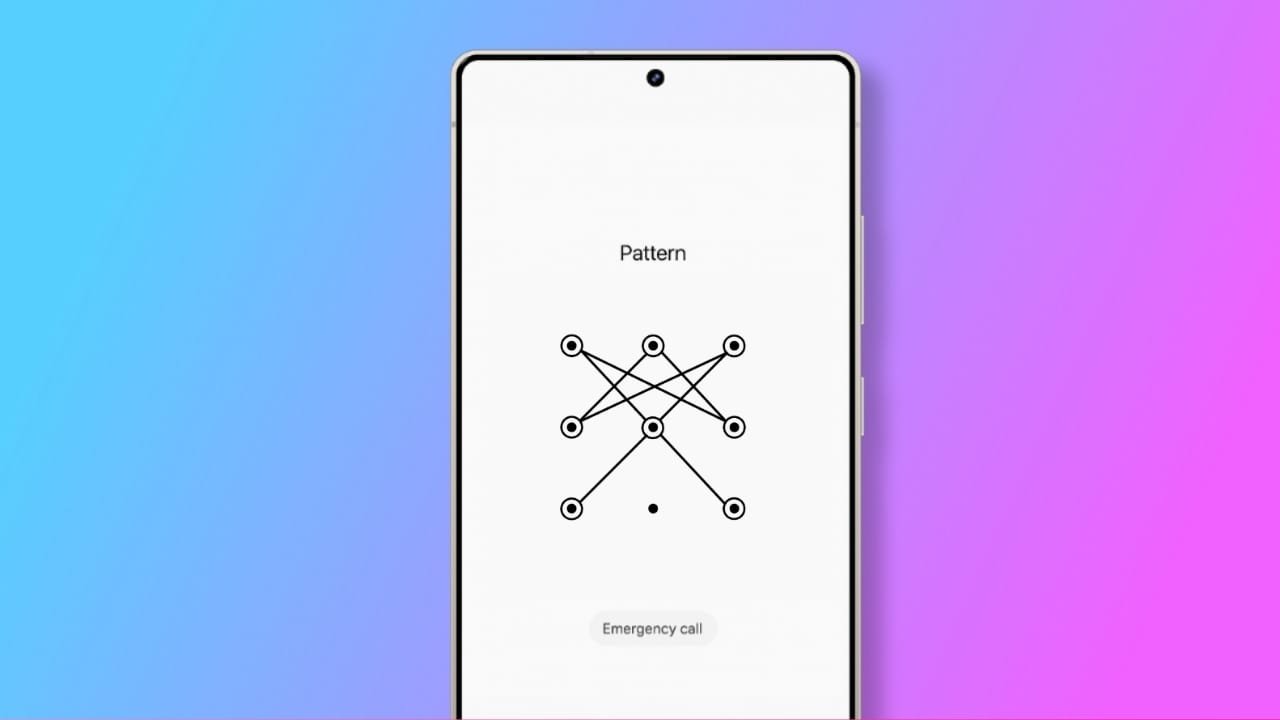
How to Set Up a Pattern Lock on Android
A pattern lock lets you unlock the phone by connecting dots in a specific sequence.
To set one up:
- Open Settings.
- Open Security & privacy or your phone’s screen-lock settings.
- Tap Screen lock.
- Choose Pattern.
- Draw the pattern you want to use.
- Draw it again to confirm.
- Complete any additional lock-screen options shown by your phone.
Choose a pattern that is easy for you to remember but difficult for another person to guess.
Avoid simple patterns such as:
- straight lines
- basic letters
- simple squares
- obvious shapes
- patterns beginning from the same predictable corner
Also avoid entering your pattern where someone can easily watch your finger movement.
Set Up a PIN Lock
A PIN uses numbers to unlock your phone.
To create one:
- Open your phone’s Screen lock settings.
- Choose PIN.
- Enter the PIN you want to use.
- Confirm the PIN.
- Complete the setup.
Android supports PINs with four or more digits, but a longer random PIN is generally harder to guess.
A six-digit or longer PIN is a better choice than a simple four-digit PIN.
Avoid PINs such as:
12340000111111- your birth year
- your phone number
- repeating or sequential numbers
What Is Auto-Confirm Unlock?
Some Android phones support Auto-confirm unlock for sufficiently long PINs.
When enabled, the phone can unlock automatically after you enter the correct PIN without requiring you to tap an additional Enter button.
This can make unlocking faster, but enabling Auto-confirm may slightly reduce PIN security.
If security is more important than convenience, you can leave this feature disabled.
Set Up a Password Lock
A password can contain letters, numbers, and other supported characters.
To set one:
- Open Settings.
- Go to your screen-lock settings.
- Select Password.
- Enter a strong password.
- Confirm it.
A strong password can provide excellent protection, but typing it every time you unlock the phone may be less convenient than using a PIN.
You can combine a strong password with fingerprint or supported face authentication for easier everyday access.
Set Up Fingerprint Unlock
Many Android phones include a fingerprint sensor.
The sensor may be located:
- under the display
- on the power button
- on the back of the phone
To add a fingerprint:
- Open Settings.
- Search for Fingerprint or Device unlock.
- Enter your current PIN, pattern, or password.
- Tap Add fingerprint.
- Place your finger on the sensor as instructed.
- Reposition your finger several times so the phone can register different areas of the fingerprint.
- Finish the setup.
You will still need a PIN, pattern, or password as a backup authentication method.
Your phone may occasionally require the backup screen lock instead of accepting the fingerprint.
Set Up Face Unlock
Some Android phones also support face authentication.
To set it up:
- Open Settings.
- Search for Face Unlock, Face recognition, or Device unlock.
- Enter your existing screen lock.
- Follow the instructions to register your face.
- Configure any available Face Unlock options.
Face-authentication security is not identical on every Android phone.
Some phones use more advanced biometric hardware, while others rely on different camera-based systems. Because of these differences, the features available for payments, app authentication, and unlocking can vary between devices.
Always keep a secure PIN, pattern, or password as your backup lock.
Which Android Screen Lock Is Best?
There is no single option that is perfect for everyone.
PIN
A PIN offers a good balance between security and convenience.
A random PIN containing at least six digits is a strong everyday choice.
Password
A strong password can provide excellent protection because it can contain more possible character combinations.
The disadvantage is that entering a long password every time can be inconvenient.
Pattern
A pattern is quick and easy to enter, but simple or predictable patterns can be easier for another person to observe or guess.
If you prefer a pattern, use a less predictable design and keep it private.
Fingerprint
Fingerprint authentication is fast and convenient on supported devices.
It works alongside your main PIN, pattern, or password rather than completely replacing it.
Face Unlock
Face Unlock can also provide convenient access, but its capabilities and security depend on the hardware and software used by your specific phone.
Some devices allow face authentication for more sensitive actions, while others limit it mainly to unlocking the screen.
How to Change Your Screen Lock
You can change an existing PIN, pattern, or password at any time.
- Open Settings.
- Go to Security & privacy or Screen lock.
- Enter your current screen lock.
- Choose a new lock method.
- Create the new PIN, pattern, or password.
- Confirm the change.
Your phone may ask you to reconfigure some biometric or security settings after changing the primary lock.
How to Turn Off Screen Lock
If you no longer want a screen lock:
- Open Settings.
- Go to your screen-lock settings.
- Enter your current PIN, pattern, or password.
- Select None or another option that removes secure locking.
- Confirm the change.
Removing the screen lock leaves the information on your phone much easier for another person to access if the device is lost or stolen.
Some features may also require a secure screen lock and may become unavailable after you remove it.
What Happens to Fingerprint and Face Unlock?
Fingerprint and face authentication depend on having a supported secure screen-lock configuration.
Your phone may remove or disable saved biometric authentication when you remove the primary PIN, password, or pattern.
If you later enable a secure lock again, you may need to register your fingerprints or face again.
Make Your Screen Lock More Secure
A few simple habits can improve smartphone security.
Use a Strong Backup Lock
Even if you normally use a fingerprint or face authentication, maintain a strong PIN, pattern, or password.
Android may require the backup lock after:
- restarting the phone
- certain security events
- repeated failed biometric attempts
- extended periods without unlocking
Keep Your PIN Private
Do not enter your PIN or password where someone can easily watch you.
If someone learns your screen lock, biometric security alone may not fully protect the device.
Lock the Screen Automatically
Configure your phone to lock after a short period of inactivity.
This reduces the chance that someone can access an unattended unlocked phone.
Avoid Predictable Credentials
Do not use information that people around you could easily guess.
Examples include:
- birthdays
- anniversary dates
- simple number sequences
- repeated numbers
- obvious patterns
Keep Android Updated
Install security and system updates provided by your phone manufacturer.
Updates can include important Android security fixes.
Is Pattern Lock Safe?
Pattern Lock is a legitimate Android screen-lock option.
Its security depends heavily on the pattern you choose and how carefully you enter it.
A complicated pattern is harder to guess than a simple one, but someone nearby may still be able to observe your finger movement.
If you want stronger protection, consider using a long PIN or password with fingerprint authentication for convenience.
Is Fingerprint Unlock Safe?
Fingerprint authentication is widely used on modern Android phones and provides convenient everyday security.
However, fingerprint authentication does not eliminate the need for a PIN, pattern, or password.
Your device keeps a primary screen lock as the backup authentication method.
For most users, combining fingerprint authentication with a strong PIN or password provides a practical balance between security and convenience.
Is Face Unlock Safe?
Face Unlock security depends on the Android device.
Different smartphones use different cameras, sensors, and biometric technologies.
Because of this, you should not assume that Face Unlock provides exactly the same security or capabilities on every Android phone.
Check your manufacturer’s documentation if you want to know whether Face Unlock on your particular device can be used for:
- screen unlocking
- app authentication
- purchases
- payments
- password verification
The End Note
Setting up Pattern Lock or another secure screen lock is an important step toward protecting your Android phone.
A strong PIN or password provides reliable protection, while fingerprint and supported face authentication can make everyday unlocking more convenient. Pattern Lock can also be used, but avoid simple or easily observed patterns.
Whichever method you choose, keep your backup PIN, pattern, or password private and avoid easy-to-guess credentials. A properly configured screen lock helps protect your personal information if your phone is lost, stolen, or accessed by someone else.