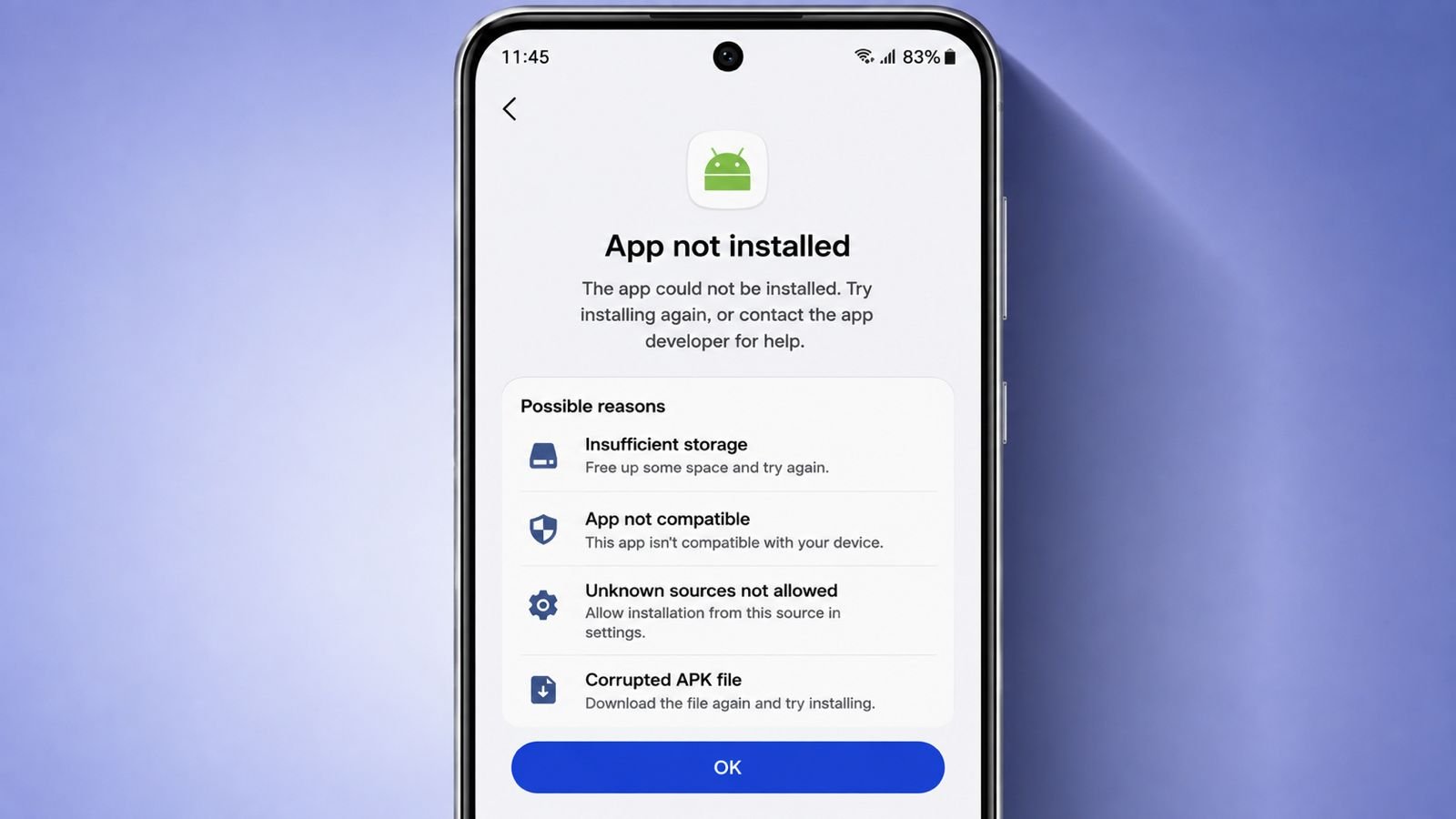

Running into the frustrating “App Not Installed” error while trying to sideload an APK file or install a downloaded app on your Android phone can bring your workflow to a halt. This error usually pops up when Android’s package installer aborts the installation due to parsing failures, storage conflicts, or signature mismatches.
Instead of guessing what went wrong, here is a step-by-step diagnostic guide to troubleshoot and successfully install your app.
Why Does the “App Not Installed” Error Happen?
- Corrupted APK File: The downloaded file might have been interrupted or downloaded incompletely.
- Architecture Mismatch: The app version you downloaded isn’t compatible with your phone’s processor architecture (e.g., trying to install an x86 app on an ARM64 device).
- Existing Package Conflict: An older version of the same app—or a conflicting app signed with a different developer certificate—is already installed on your device.
- Storage Path Issues: Your SD card or internal storage is unmounted, or file permission pathways are blocked.
Step-by-Step Fixes to Resolve the Error
1. Uninstall Any Existing Versions of the App
If an older version or a modified clone of the app is already present on your phone, Android will block the installation due to a signature conflict.
- Go to your phone’s Settings > Apps.
- Look for the app you are trying to install. If it exists, uninstall it completely.
- Restart your phone, then try installing the APK file again.
2. Check for Storage and SD Card Conflicts
If your phone is attempting to install apps to an external SD card that is corrupted, unmounted, or improperly formatted, the installer will fail.
- Temporarily unmount or remove your external SD card.
- Ensure your phone has plenty of free internal storage space.
- Try running the APK installation again directly on internal storage.
3. Verify App Compatibility and Architecture
Make sure the APK file matches your device’s specifications:
- Check if you downloaded the correct variant for your processor architecture (such as ARM64 for modern Android phones).
- Verify that the app supports your current Android OS version. If an app was built for older Android versions, it may fail to parse on newer software.
4. Clear Google Play Protect Cache (If Flagged)
Sometimes Google Play Protect blocks third-party APK installations mistakenly.
- Open the Google Play Store app.
- Tap your profile icon and select Play Protect.
- Tap the settings gear icon in the top right and temporarily toggle off Scan apps with Play Protect.
- Attempt your installation again (and remember to turn Play Protect back on afterward).