
Accidentally uninstalling an app or game does not always mean it is gone permanently. If you previously downloaded it from Google Play, you can usually find it in your Play Store history and reinstall it.
However, reinstalling an app is different from recovering its old data. App settings, files, or game progress will only return if they were backed up or synced by the app, game, or your Google Account.
Key Takeaways
- Previously installed apps can usually be found through Google Play Store > Manage apps & device.
- Use the same Google Account that was used to download or purchase the app.
- Paid apps can normally be reinstalled without buying them again.
- Some apps may no longer appear if they were removed from Google Play or are incompatible with your device.
- Reinstalling a game does not guarantee that your previous progress will return.
- Game progress may be restored if the game used Google Play Games or its own cloud account.
How to Recover Deleted Apps and Games Using Google Play Store
Google Play keeps a record of apps associated with your Google Account.
To find apps that are no longer installed:
- Open the Google Play Store.
- Tap your profile icon in the upper-right corner.
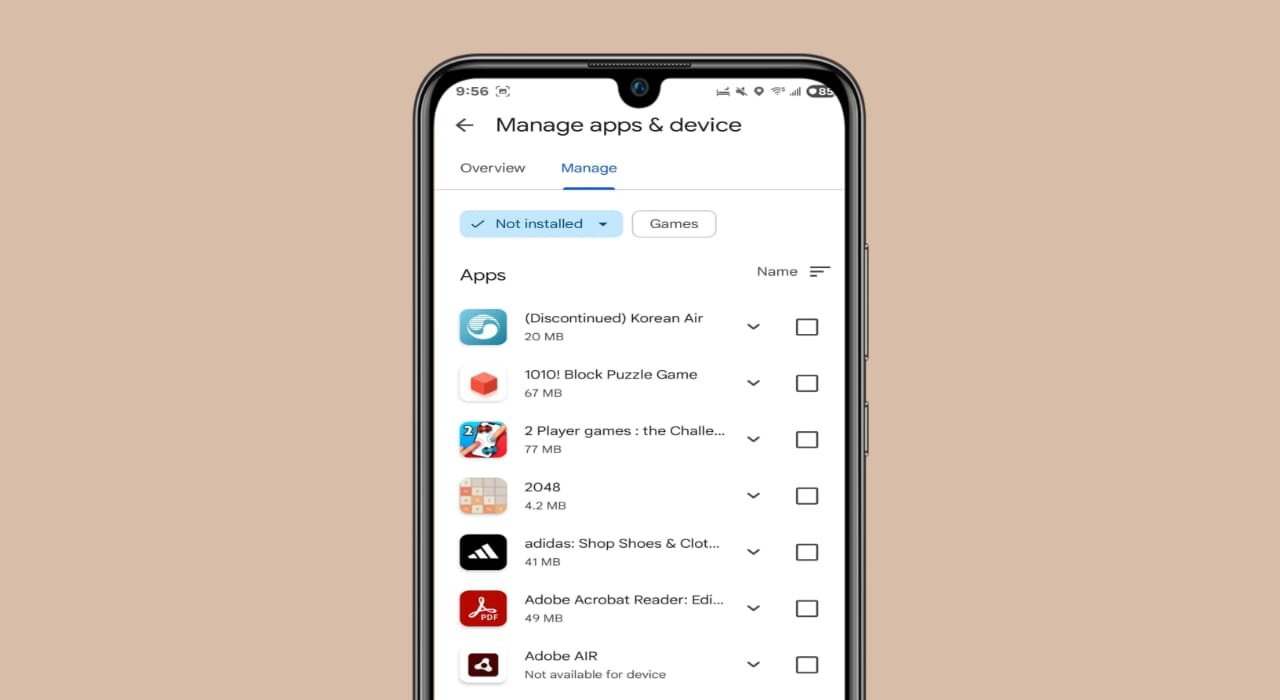
- Select Manage apps & device.
- Open the Manage tab.
- Tap the device filter near the top.
- Select Not installed.
- Find the app or game you want to reinstall.
- Select it.
- Tap Install.
You can select multiple apps if you want to reinstall several of them at once.
Make sure you are using the same Google Account that you originally used to install or purchase the app.
Cannot Find the Deleted App?
If an app does not appear under Not installed, check the following possibilities.
Check Your Google Account
Many Android users have more than one Google Account.
Open the Play Store and confirm that you are using the account that originally downloaded or purchased the app.
If you purchased an app using another Google Account, the purchase usually remains connected to that account.
The App May No Longer Be Available
An app may disappear from Google Play because:
- the developer removed it
- Google removed it from the Play Store
- it is no longer available in your country
- it is incompatible with your Android version
- it is not supported on your current device
In these situations, reinstalling it through Google Play may not be possible.
Check Whether the App Was Disabled
Some preinstalled Android apps can be disabled instead of completely uninstalled.
If this happened, Google Play may show an Enable button instead of Install.
Tap Enable to turn the app back on.
Can You Recover a Paid App Without Paying Again?
Usually, yes.
If you previously purchased an Android app through Google Play, you can normally reinstall it on a compatible Android device without paying again.
You must use the same Google Account that made the original purchase.
If Google Play asks you to purchase the app again, first check whether you are signed in with the correct account.
Does Reinstalling an App Restore Its Data?
Not necessarily.
Google Play can reinstall the application itself, but that does not automatically mean the app’s old data will return.
Data recovery depends on how the application stores information.
Your previous data may return if the app:
- syncs information to an online account
- uses Android backup features
- stores information in its own cloud service
- saves data to another connected account
If the data existed only in the app’s local storage and was deleted during uninstalling or a factory reset, it may not be recoverable.
How to Restore Deleted Game Progress
Reinstalling a game and restoring its progress are two different things.
Some Android games save progress through Google Play Games or their own cloud systems.
To check:
- Reinstall the game.
- Open it.
- Sign in using the Google Account you previously used.
- Check whether your previous progress appears.
Not every game supports automatic cloud saves, so your old progress may not return in every case.
Check Whether a Game Uses Google Play Games
You can check through its Play Store listing.
- Open the Google Play Store.
- Search for the game.
- Open its app page.
- Tap Read more below the preview images.
- Look for information showing that the game uses Google Play Games.
If it does, make sure you are signed into the same Google Account that you used before.
What If Game Progress Is Still Missing?
Some games use their own accounts instead of Google Play Games.
Game progress may be connected to:
- the game’s own account
- Google sign-in
- an email account
- the publisher’s cloud service
Sign in with the account you previously used.
If the game does not support cloud saving and its local data was deleted, reinstalling the game may start it from the beginning.
In that situation, you may need to contact the game developer for help.
Recover Apps After a Factory Reset
A factory reset removes installed apps from the phone, but apps associated with your Google Account can usually be downloaded again.
Sign in to the same Google Account and either restore apps during Android setup or reinstall them through the Google Play Store.
Remember that restoring the app itself does not guarantee that every app’s locally stored information will return.
Can You Recover an App Removed From Google Play?
Not always.
If the developer or Google has removed an app from the Play Store, it may no longer be available for installation.
Avoid downloading APK files from unknown websites simply because the original app is unavailable. Unofficial or modified APK files can create security and privacy risks.
Final Words
Recovering a deleted Android app usually means reinstalling it through your Google Play history.
Open Google Play Store > Manage apps & device > Manage > Not installed, find the app, and install it again.
For games, remember that reinstalling the game does not automatically restore your previous progress. Game saves only return when they were backed up through Google Play Games, a game account, or another cloud service.