
How to Share Live Locations Using Apple Maps on iPhone, iPad, Mac, and Apple Watch
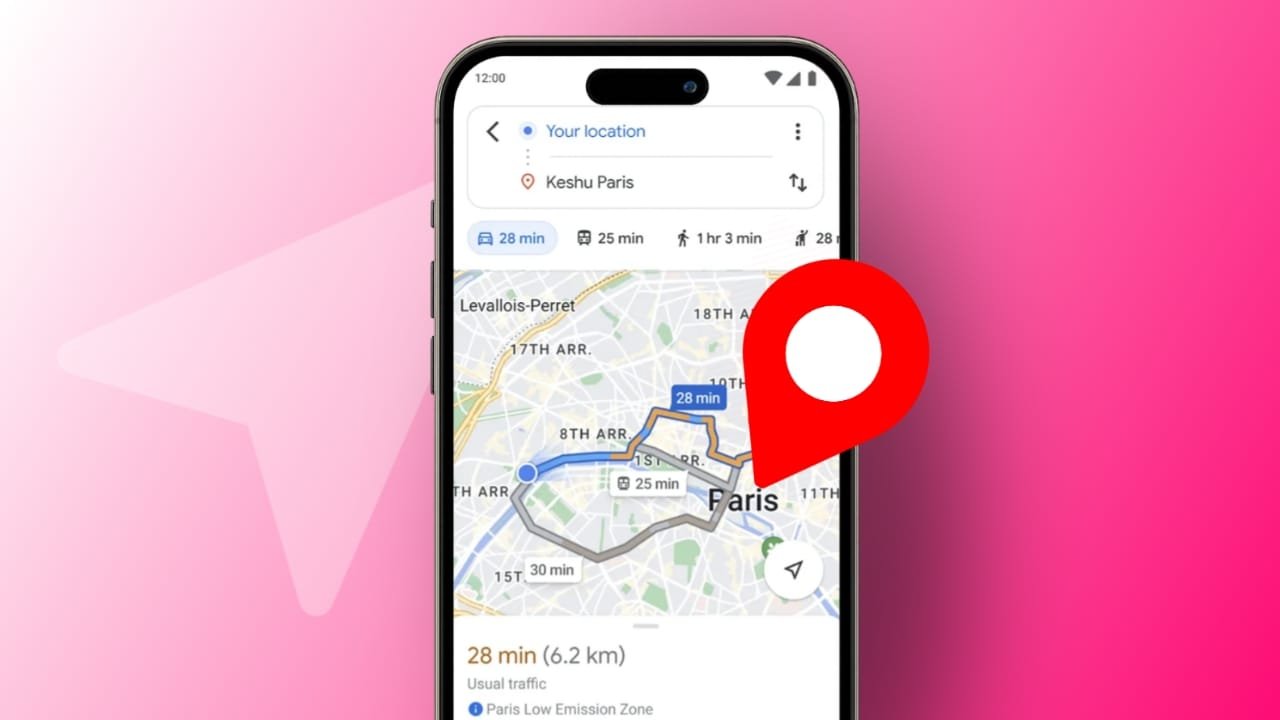
Sharing live Locations Using Apple Maps on iPhone, iPad, Mac, and Apple Watch helps daily communication. People often need to share their location instantly. Apple Maps includes a trusted sharing feature.
This feature works smoothly across Apple devices. It supports families, friends, and work needs. The steps are simple and clear. Anyone worldwide can follow easily. This guide explains all methods in detail.
Key Takeaways:
- Apple Maps lets users share their live location easily.
- Works smoothly across iPhone, iPad, Mac, and Apple Watch.
- Non-Apple users can open shared web links.
Share Live Locations Using Apple Maps on iPhone, iPad, Mac, and Apple Watch Using iPhone and iPad
Share Live Locations Using Apple Maps on iPhone, iPad, Mac, and Apple Watch works easily on iPhone. Apple Maps provides multiple built-in sharing options. Each method suits different user preferences. All methods share accurate live location details.
The first method uses Home Screen quick actions. Users press and hold the Apple Maps icon. A small menu appears with available actions. Users select the Share My Location option. The device may request location access permission.
Users can allow access always or while using. After permission approval, sharing options appear. Users select a preferred sharing medium. On-screen instructions guide users clearly. Tapping Send completes the sharing process.
The second method works inside the Apple Maps app. Users open Apple Maps normally on the device. They swipe up the map controls menu. Additional options appear on the screen. Users scroll down to Share My Location.
After selecting it, sharing choices appear. Users choose a medium for sharing. Following instructions and tapping Send completes sharing.
The third method shares a dropped pin location. Users open Apple Maps on their device. They drop a pin on the desired location. A place card appears with options. Users tap the Share icon displayed.
Sharing media is shown clearly. Users select a preferred option. Following the instructions completes the location sharing process.
Share Live Locations Using Apple Maps on iPhone, iPad, Mac, and Apple Watch Using Mac
Share Live Locations Using Apple Maps on iPhone, iPad, Mac, and Apple Watch feels simpler on Mac. Apple Maps automatically fetches live location details. The interface is clean and user-friendly.
One method allows direct sharing from Apple Maps. Users open Apple Maps on their Mac. They locate the Share icon in the top right.
Clicking the icon opens sharing options. Users choose their preferred sharing platform. Apple Maps instantly sends live location data.
Another method uses the pop-up menu option. Users open Apple Maps on a Mac. They click a location on the map. A pop-up menu appears quickly. Users select the three-dot icons. They choose Share from the menu options.
Users can select Send to Device. Paired devices appear through AirDrop. Selecting a device shares the live location.
Share Live Locations Using Apple Maps on iPhone, iPad, Mac, and Apple Watch: Additional Details
Share Live Locations Using Apple Maps on iPhone, iPad, Mac, and Apple Watch supports non-Apple devices. Recipients receive a secure web link. The link opens using any browser.
Location sharing works during low power mode. Battery saving settings do not block sharing. Shared locations update live and accurately. Apple Watch users can receive shared links.
Android: Locations
The End Note
Share Live Locations Using Apple Maps on iPhone, iPad, Mac, and Apple Watch improves safety. Apple Maps offers flexible and simple sharing methods. iPhone and iPad users get multiple options.
Mac users enjoy fast, direct sharing. Non-Apple users can open shared links. Low power mode still supports sharing. These features help everyone stay informed easily.