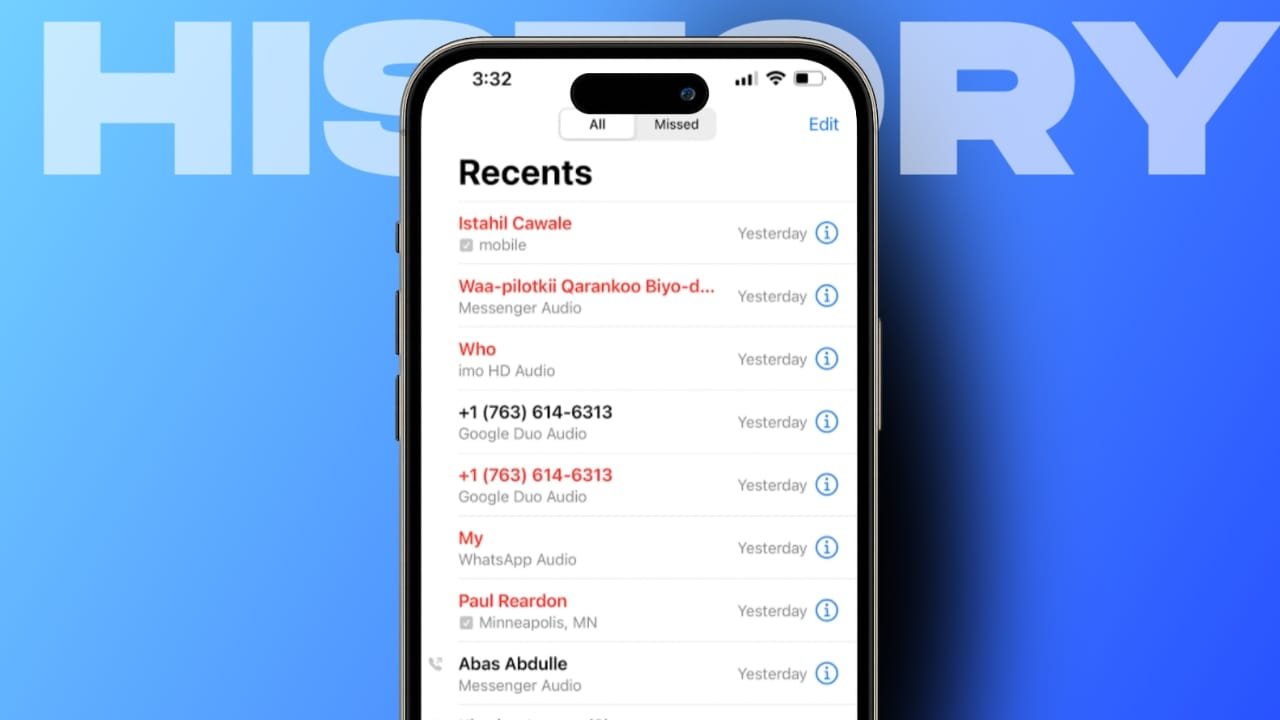

Deleting spam call history can help keep your recent-call list easier to review, but deleting a call does not block the caller from contacting you again.
Android and iPhone provide separate options for deleting call history, blocking unwanted numbers, and filtering suspected spam calls. This guide explains the differences and shows how to manage spam calls correctly.
Related Article: How to Share Live Locations Using Apple Maps on iPhone, iPad, Mac, and Apple Watch
Key Takeaways
- Deleting a spam call removes it from your call history but does not block the number.
- Phone by Google can identify and filter suspected spam calls on supported Android devices.
- iOS 26 can separate suspected spam and unknown callers into dedicated call-history lists.
- Blocking or spam filtering is more useful than repeatedly deleting the same unwanted calls.
How to Delete Spam Call History on Android
The exact Phone app interface can vary between Android manufacturers.
The steps below apply to Phone by Google, which is used on Pixel phones and many other Android devices.
Delete One Spam Call From Android Call History
To remove an individual call:
- Open the Phone app.
- Open the Home or recent-call section.
- Tap the phone number or contact you want to remove.
- Tap Call details.
- Tap the Delete/Trash icon.
The call is removed from your device’s call history.
Deleting the call does not automatically block the phone number.
Delete Your Entire Call History on Android
If you want to clear the complete call-history list in Phone by Google:
- Open the Phone app.
- Tap Home.
- Tap the More options menu.
- Select Call history.
- Tap More options again.
- Choose Clear call history.
- Tap OK to confirm.
This removes the visible call-history entries from the Phone app.
Be careful when clearing the entire history because legitimate recent calls will also be removed.
Block or Report Spam Calls on Android
If the same unwanted number keeps calling, deleting its history is usually less useful than blocking or reporting it.
In Phone by Google:
- Open the Phone app.
- Find the suspicious call.
- Tap the call or press and hold it.
- Choose Block or Report spam.
Once blocked, calls from that number are prevented from reaching you normally.
Reporting the number as spam can also help Google’s spam-detection system identify suspicious callers.
Turn On Spam Protection on Android
Phone by Google includes caller identification and spam protection.
To review the setting:
- Open the Phone app.
- Tap More options.
- Open Settings.
- Select Caller ID and spam.
- Turn on See caller ID & spam.
On supported devices, you may also see Filter spam calls.
When spam filtering is enabled, suspected spam calls can be filtered automatically. Filtered calls can still appear in your call history so you can review them later.
Some Pixel devices use Call Screen instead of a separate Filter spam calls option.
Available options depend on your phone model, Android version, region, and Phone app features.
How to Delete Spam Call History on iPhone
Current versions of iOS make it easier to separate spam calls from regular calls.
On iOS 26, the Phone app can show dedicated lists for:
- Calls
- Missed calls
- Unknown Callers
- Spam
Delete One Spam Call on iPhone
Follow these steps:
- Open the Phone app.
- Tap the Filter button.
- Choose Spam if the call has been identified as spam.
- Find the call you want to remove.
- Swipe the call all the way to the left.
The call will be removed from your iPhone call history.
Delete Multiple Spam Calls on iPhone
You can also remove several calls together:
- Open the Phone app.
- Tap the Filter button.
- Choose Spam, Unknown Callers, or another call list.
- Tap Edit.
- Tap Select.
- Choose the calls you want to remove.
- Tap Delete.
Deleting these entries only clears the history. It does not automatically block the callers.
Screen or Silence Unknown Callers on iPhone
iOS 26 provides additional controls for calls from numbers that are not saved in your contacts.
Go to:
Settings → Apps → Phone
Then find Screen Unknown Callers.
Depending on the available options, you can choose:
- Never – unsaved numbers ring normally.
- Ask Reason for Calling – iPhone screens the caller and asks why they are calling before your phone rings.
- Silence – calls from unsaved numbers are silenced and sent to voicemail.
These settings are more useful for preventing interruptions than repeatedly deleting call-history entries.
Be careful with the Silence option because legitimate businesses, delivery drivers, hospitals, schools, or other people whose numbers are not saved may also be silenced.
Filter Unknown Callers on iPhone
You can keep calls from unknown numbers separate without completely silencing them.
Go to:
Settings → Apps → Phone → Call Filtering
Turn on Unknown Callers.
Missed calls and voicemails from unknown numbers are then moved into a separate Unknown Callers list in the Phone app.
This makes the main call list easier to review.
Silence Calls Identified as Spam on iPhone
If your carrier or supported services identify a call as spam or fraud, iPhone can silence it automatically.
Go to:
Settings → Apps → Phone → Call Filtering
Turn on Spam if the option is available.
Calls identified as spam are silenced, sent to voicemail, and moved into the Spam list in your call history.
Availability can depend on your carrier and region.
Block an Individual Caller on iPhone
If one number repeatedly contacts you, you can block it instead of simply deleting its call history.
Open the Phone app and find the caller.
Depending on whether you use the Unified or Classic Phone layout, open the call details and choose the option to block the caller.
Blocking is different from deleting call history.
Deleting: Removes the record of the call.
Blocking: Helps prevent future calls from that specific number.
Spammers may use different numbers, so blocking one number cannot stop every spam call.
Deleting Call History Does Not Save Much Storage
There is usually no need to regularly delete call history to free significant storage space.
A call-history entry contains relatively little information.
Delete unwanted entries primarily when you want a cleaner or more private recent-call list, not because you expect a major increase in available phone storage.
If storage space is your main concern, photos, videos, downloads, apps, offline media, and large message attachments usually have a much greater impact.
Deleting Spam Calls vs Blocking Spam Calls
These two actions solve different problems.
Delete Spam Call History
Use this when you want to:
- Clean the recent-call list
- Remove unwanted call records
- Make important calls easier to find
- Remove specific entries for privacy
Block or Filter Spam Calls
Use this when you want to:
- Reduce repeated unwanted calls
- Prevent a specific number from calling normally
- Silence suspected spam automatically
- Separate suspicious calls from normal calls
For recurring spam, blocking and filtering are generally more useful than repeatedly deleting call-history entries.
The End Note
Deleting spam call history on Android or iPhone removes unwanted calls from your recent-call list, but it does not stop future spam calls by itself.
On Android phones using Phone by Google, you can delete individual calls or clear the entire call history and use Caller ID and spam protection to identify suspicious numbers.
On iOS 26, the Phone app can separate Unknown Callers and Spam into dedicated lists, while additional screening and filtering controls can reduce unwanted interruptions.
For repeated spam, use blocking, caller identification, and spam filtering rather than relying only on deleting call history.
Sources
Apple Support — View and delete your call history on iPhone
Apple Support — Manage unknown callers on iPhone
Google Phone Help — Manage call history
Google Phone Help — Use caller ID and spam protection
Last verified: September 9, 2026