How to Delete Spam Call History: Simple Guide For Everyone
Spam calls and messages disturb daily phone communication. Many users receive unwanted calls throughout the day. Spam messages also fill the inbox space very quickly. Phones include tools to manage these spam problems.
Users must understand the steps for different phone systems. Android and iPhone provide separate spam control options. This guide explains all methods using very simple English to delete spam call history.
Related Article: How to Share Live Locations Using Apple Maps on iPhone, iPad, Mac, and Apple Watch
Key Takeaways:
- Android and iPhone have built-in spam controls. Users can delete spam and block numbers easily.
- Regular spam deletion keeps phones clean. It saves storage and reduces daily disturbance.
- Automatic spam features save time. They stop repeated unwanted calls and messages.
Managing Spam Messages on Android Phones
Android phones manage spam messages fairly well. However, users still need manual message cleanup. Spam messages slowly consume storage space unnecessarily. Blocked spam messages also remain saved on devices.
Users should delete these messages regularly. Open the Messages app on your Android phone. From the main screen, tap the menu icon. Select the Spam and blocked option carefully. All spam messages appear inside this folder. You must select messages one by one.
Long-press one message to start selection. Then tap other messages you want removed. There is no select all option available. After selection, tap the trash icon above. Confirm deletion when the phone asks. Selected spam messages disappear from the folder.
Android also allows manual number blocking. This helps stop missed spam numbers. Open the Spam and blocked sections again. Tap the menu and choose blocked contacts. Select the option to add a number.
Enter the unwanted phone number carefully. The number becomes blocked permanently. Future messages from that number stop completely.
Managing Spam Calls on iPhone Devices
Spam calls affect iPhone users worldwide daily. Apple provides features to reduce spam interruptions. Each feature works differently for users. One simple method blocks unknown callers automatically. Open the Settings app on iPhone.
Tap Phone from the settings menu. Select the Call Blocking and Identification option. Turn on the Silence Unknown Callers feature. Unknown calls go straight to voicemail. Your phone does not ring anymore. Emergency calls disable this feature temporarily.
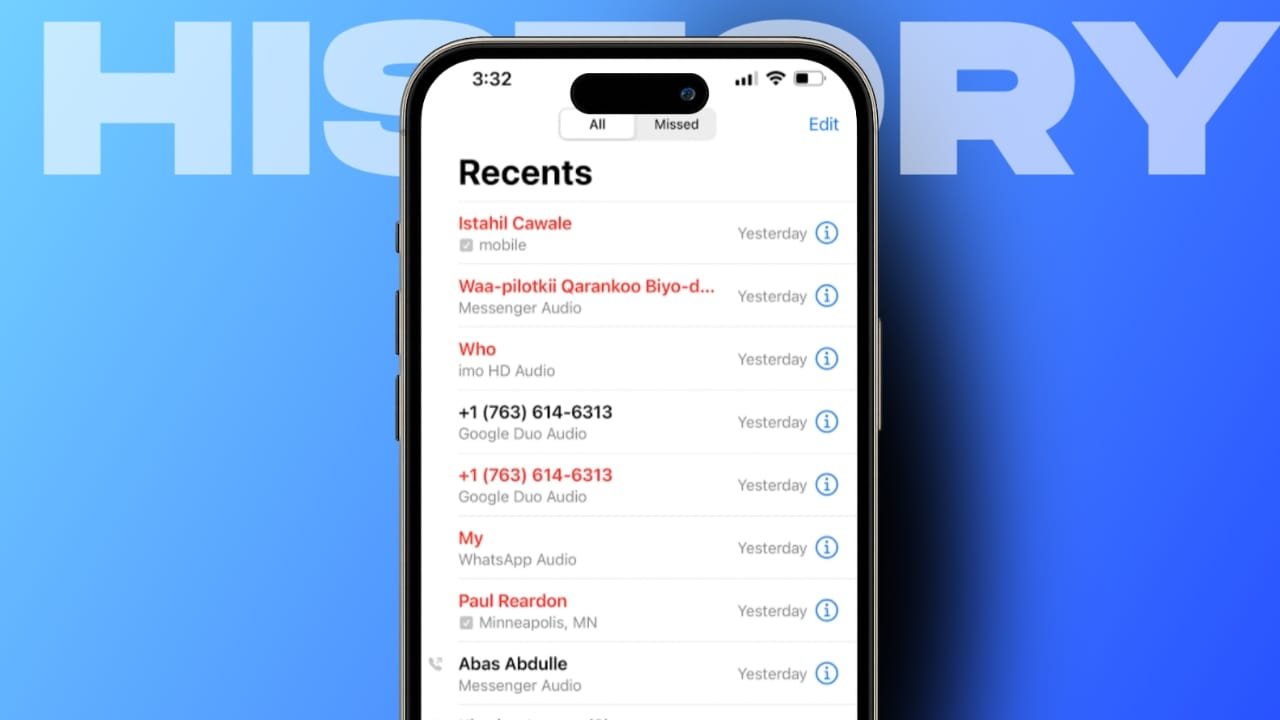
Important unknown calls may sometimes be missed. Users can also block callers manually. Open the Phone app on iPhone. Tap Recents to view call history. Tap the information icon beside the number.
Choose the option to block the caller. That number cannot be called again. Spammers often use many different numbers. Manual blocking can become tiring over time.
Call Identification and Android Spam Calls
Call Identification helps recognize real callers easily. Open Settings and tap Phone again. Select the Call Blocking and Identification section. Enable business identification for verified companies. Now enable junk caller silencing from carrier detection.
Enable third-party call identification apps. Apps can be arranged by priority order. Android phones also offer spam call controls. Open the Phone app on Android. Tap the three dots menu icon. Spam protection options appear in settings. Enable available spam call filtering features.
Android: Call History
The End Note
Spam call History and messages waste time daily, so delete them to keep phones clean and organized. Blocking numbers prevents repeated unwanted contact. Android and iPhone provide helpful built-in tools.
Automatic features save effort and time. Manual controls give better personal flexibility. Regular use ensures peaceful phone communication.