
Sync iPhone With Yahoo and Google Contacts without hassle as your contacts can stay updated across multiple platforms. iPhone supports both Google and Yahoo accounts.
Proper settings make synchronization happen almost automatically. This guide covers syncing, transfers, duplicates, security, troubleshooting, and organization.
Related Article: How to Remove Duplicate Photos on iPhone
Sync iPhone With Yahoo and Google Contacts
Managing contacts across several platforms becomes confusing quickly. One contact list may live inside Google. Another list could remain inside Yahoo Mail. Some contacts might only exist on your iPhone.
Manually updating every list wastes valuable time. Thankfully, the iPhone offers built-in contact synchronization options. You only need correct account settings initially.
Sync Google Contacts With Your iPhone
Google Contacts can connect directly with your iPhone. First, make sure Gmail works on your iPhone. Then open Settings from your iPhone Home screen. Scroll down and select Passwords & Accounts there.
Now tap Gmail from your available accounts list. Find Contacts and turn its toggle on. A Turning on Contacts message may appear temporarily. Wait until that message disappears from your screen.
Your Google Contacts should then start synchronizing automatically. Once enabled, both contact lists stay connected. New Google contacts can appear on your iPhone. Changes made on the iPhone can return to Google.
However, synchronization does not always happen instantly. Most changes appear within one or two minutes. This makes contact management much easier overall.
Important: Turning Contacts off stops synchronization completely. Your Google contacts then disappear from your iPhone.
However, synchronized changes remain saved inside Google. Therefore, disabling syncing does not delete Google contacts.
Related Article: How to Use Apple Watch on iPhone
Sync Yahoo Contacts With Your iPhone
Yahoo Contacts works almost similarly on iPhone devices. First, make sure Yahoo Mail works on the iPhone. Open Settings from your iPhone Home screen.
Scroll down and select Passwords & Accounts there. Then tap Yahoo from your listed accounts. Turn on the Contacts toggle from there. Yahoo might request your account password during setup.
You may also see Turning on Contacts temporarily. Wait until the message disappears before continuing further. Your Yahoo contacts should then synchronize with the iPhone.
New Yahoo contacts will appear inside iPhone Contacts. Changes can also synchronize back into Yahoo. Updates usually appear after several minutes have passed. Therefore, avoid expecting instant synchronization between platforms.
If syncing gets disabled: Yahoo contacts disappear. However, synchronized changes remain stored inside Yahoo. Your existing Yahoo account data stays protected.
Why Sync iPhone with Yahoo and Google Contacts Makes Life Easier
Contact synchronization removes repetitive manual updating tasks. You can manage information from multiple connected devices.
Changes can automatically travel between supported platforms. This becomes especially useful for growing contact lists. It also reduces the chances of outdated information.
Still, synchronization depends on working account connections. Internet problems can temporarily interrupt the process. Account authentication issues can also stop synchronization.
Manage Duplicate Contacts Across Your Accounts
Keeping contacts synchronized can create another problem. Duplicate entries sometimes appear after importing contacts.
Different platforms may also contain conflicting contact versions. Google and Yahoo provide tools for handling duplicates.
Remove Duplicate Contacts From Google Contacts
Google Contacts provides a dedicated duplicate management feature. Start by opening Gmail and finding its menu. Choose Contacts from the available menu options.
Then select Duplicates to find repeated contact entries. Google displays possible duplicates requiring your attention there.
You can dismiss duplicates that should remain separate. Choose Merge when entries represent one person. Merging combines information from duplicate contact records.
Continue reviewing entries until duplicates disappear completely. This step becomes useful after importing Yahoo contacts. It prevents multiple records from cluttering your address book.
Remove Duplicate Contacts From Yahoo Contacts
Yahoo Contacts provides similar duplicate-cleaning tools. Open Yahoo Contacts and sign into your account. Select Fix Duplicate Contacts from available options.
Yahoo then checks your address book for duplicates. It identifies exact and similar duplicates separately. Exact duplicates contain completely matching contact information.
Similar duplicates share names but contain different information. Yahoo lets you review these entries individually. You can choose which information should remain afterward.
For exact duplicates, select Merge All EXACT. This quickly combines matching duplicate contact entries. For similar duplicates, select each entry individually. Then decide which contact information should remain. Repeat until your address book becomes clean.
Transfer Yahoo Contacts Into Google Contacts
Yahoo contacts can also move into Google Contacts. This process requires exporting contacts into CSV format. First, export your Yahoo contacts into a CSV. Then open Google Contacts and select Import there.
Choose the CSV file containing your Yahoo contacts. Upload that file into Google Contacts successfully. Google then adds those contacts to your account.
This method works differently from direct synchronization. It mainly transfers contacts between separate platforms. You can then access them through Google Contacts.
Connect Yahoo Contacts With Outlook
Yahoo contacts can also connect with Microsoft Outlook. Start by adding your Yahoo account inside Outlook. Open File and choose Add Account there.
Enter your Yahoo Mail credentials when requested. Select your Yahoo account and choose Continue afterward. Sign in and grant the requested permissions.
Outlook can then synchronize your Yahoo contacts automatically. Your contacts become available inside Outlook’s address book.
This setup helps centralize contacts inside Outlook. It also reduces switching between separate contact platforms.
Connect Yahoo Contacts With Apple Contacts
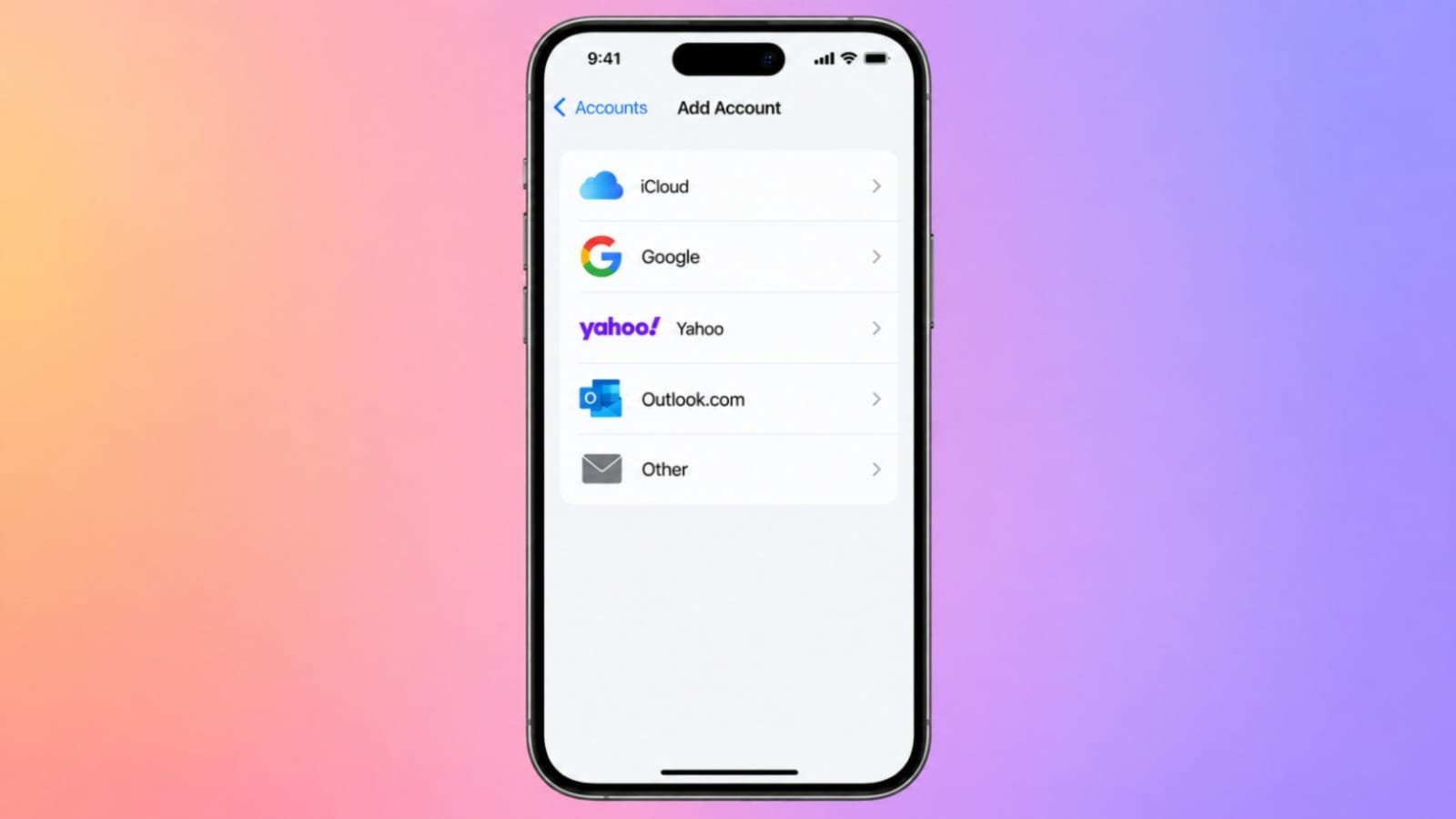
Apple Contacts provides another way for synchronization. Open Settings on your iOS device first. Tap Contacts, followed by Accounts from there. Choose Add Account and select Yahoo afterward.
Enter your Yahoo Mail credentials when requested. Enable the Contacts synchronization option afterward. Your Yahoo contacts then appear inside Apple Contacts.
This keeps Yahoo contacts accessible through iPhone Contacts. It also provides a simpler contact management experience.
Connect Yahoo Contacts With LinkedIn
Yahoo contacts can also connect with LinkedIn. Start by exporting your LinkedIn contacts into CSV. Find the export option inside LinkedIn settings.
Then import that CSV file into Yahoo Contacts. Open Contacts and choose the Import option. Your LinkedIn contacts can then enter Yahoo Mail.
The process also works in reverse order. Export your Yahoo contacts into another CSV file. Then import those contacts into LinkedIn. This keeps professional connections accessible across platforms.
Connect Yahoo Contacts With Facebook
Facebook contacts can also enter your Yahoo account. First, sign into your Yahoo Mail account. Navigate to the Contacts section from there.
Click Import to view available importing options. Choose Facebook from the displayed options list. Yahoo will request your Facebook account credentials.
Sign in and approve the requested permissions. Your Facebook contacts can then enter Yahoo Contacts. This can combine social and email contacts together. It makes staying connected with people much easier.
Connect Yahoo Contacts With Thunderbird
Yahoo Contacts can also work with Thunderbird. Open Yahoo Mail and select the Contacts icon. Then open the Actions menu above your contacts. Choose Export from the available options there.
Select Netscape/Thunderbird and click Export Now. Yahoo downloads your contacts as a compatible file. Now open Thunderbird on your computer system. Select Tools, then choose Import from there.
Choose Address Books from the available options. Select Text file and choose your exported file. Thunderbird imports contacts as a separate address book.
Connect Yahoo Contacts With Android Contacts
Yahoo contacts can synchronize with Android Contacts too. First, install the Yahoo Mail app on Android. Open your device Settings and select Accounts. Choose Yahoo from your available account list.
Select your Yahoo Mail account from the options. Enable Sync Contacts from the account settings. Your Yahoo contacts should then appear within Android Contacts.
Connect Yahoo Contacts With Salesforce
Businesses can also connect Yahoo with Salesforce. Start by exporting your Yahoo contacts into CSV. Then sign into your Salesforce account successfully. Navigate to the Contacts section inside Salesforce.
Use the Import Wizard for importing your contacts. Upload the CSV file exported from Yahoo earlier. Next, map Yahoo fields with Salesforce fields correctly.
This helps place information into correct locations. After importing, contacts become available inside Salesforce directly. This setup can simplify business relationship management significantly.
It also keeps important business contacts centrally accessible.
Fix Syncing Problems and Keep Contacts Organized
Contact synchronization sometimes stops working unexpectedly. Fortunately, several simple checks can solve problems. Start by checking your device internet connection first.
A stable connection helps synchronization work correctly. Next, update Yahoo Mail and connected applications. Older software can sometimes create synchronization problems.
Re-authenticating your accounts can also help sometimes. Re-enter your credentials when authentication appears problematic. Also review synchronization settings across connected accounts.
Make sure Contacts synchronization remains enabled everywhere. Finally, restart your device after checking settings. A restart can clear temporary software-related glitches.
Keep Your Synced Contacts Organized
Synchronization alone cannot keep contacts perfectly organized. Regular contact management remains important after synchronization.
Start by merging duplicate entries whenever possible. Duplicates make searching for contacts unnecessarily difficult. They can also create confusion during important calls.
Create categories based on contact type and purpose. For example, separate work, family, and friends. Regularly review your contacts for outdated information.
Update phone numbers, emails, and names when necessary. Keep regular backups of your important contact information. Backups can prevent unexpected contact data loss.
Dedicated contact management apps can offer advanced features. Some provide smart suggestions and automated contact updates. These tools become useful with larger contact lists.
Protect Your Contacts During Synchronization
Your contacts contain valuable personal information and details. Therefore, security matters when syncing across platforms. Always use services offering secure connections during transfers.
HTTPS helps protect information during online transmission. Review permissions granted to connected applications regularly. Remove unnecessary access whenever permissions become excessive.
Enable two-factor authentication wherever supported by platforms. This adds another security layer around your accounts. Be careful when choosing third-party synchronization services.
Unknown tools may request unnecessary contact permissions. Choose services with strong privacy and security reputations. Keep every involved application updated with security patches.
Advanced Contact Synchronization Options
Some users need more advanced synchronization capabilities. Several third-party tools provide additional cross-platform functionality.
SyncGene supports synchronization across different contact platforms. It can connect Yahoo, Google, and other services.
CardDAV provides another option for supported applications. It offers flexibility across compatible devices and services.
PieSync provides real-time two-way contact synchronization. This keeps connected contact information updated automatically.
IFTTT can automate certain contact synchronization workflows. Users can create applets using specific trigger conditions.
These tools provide greater control over contact management. However, third-party services require careful consideration first.
Always review permissions before connecting your accounts. Also check privacy policies before importing contacts.
As We Conclude
Sync iPhone With Yahoo and Google Contacts easily. Correct settings keep your contact lists synchronized. Yahoo also connects with many additional platforms.
Duplicate tools keep your address book cleaner. Security practices protect important contact information.