
If your Samsung Galaxy phone is charging more slowly than expected, first check whether Fast charging is enabled and whether your charger and cable support the charging speed available on your phone.
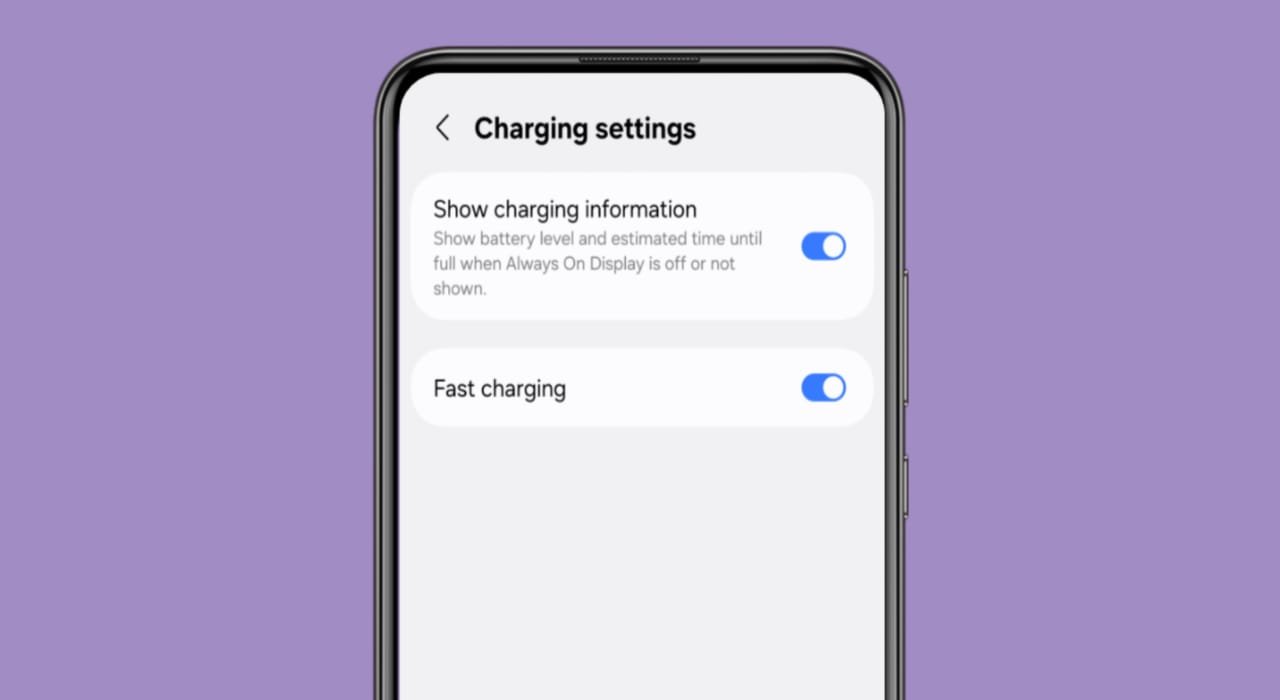
On newer Galaxy phones, the option is usually available under Settings > Battery > Charging settings. Older Samsung phones and One UI versions may place it under Battery and device care > Battery > More battery settings.
The exact menu and available charging options can vary by Galaxy model and software version.
On the Galaxy S23 series and newer models, Samsung combines Fast charging and Super fast charging under one Fast charging setting. The phone automatically uses the fastest supported charging speed based on the Galaxy model, charger, cable, battery level, and temperature.
Related Article: How to Turn On or Off Developer Options on Android Easily
How to Turn On Fast Charging on a Samsung Phone
On many newer Samsung Galaxy phones:
- Open Settings.
- Tap Battery.
- Select Charging settings.
- Turn on Fast charging.
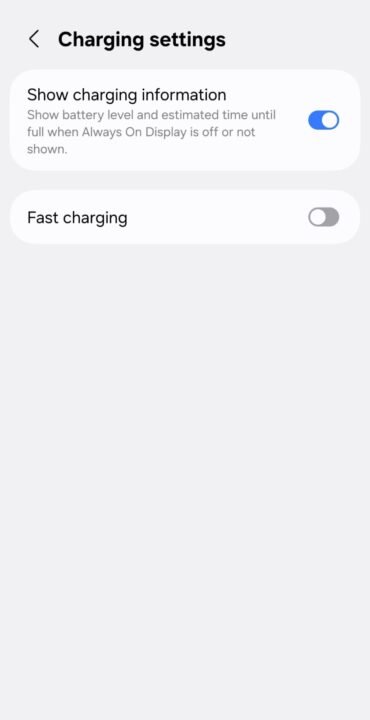
If your phone supports fast wireless charging, you may also see Fast wireless charging on this screen.
Your Galaxy model may show slightly different menu names.
Related Article: How to Create Custom Wallpapers Using AI Apps on Android
Can’t Find the Fast Charging Option?
On some older Samsung phones, try this path:
- Open Settings.
- Tap Battery and device care.
- Select Battery.
- Tap More battery settings.
- Look for Fast charging, Super fast charging, or Fast wireless charging.
You can also use the search box inside the Settings app and search for Fast charging or Charging settings.
Samsung changes menu locations between devices and One UI versions, so one path will not apply to every Galaxy phone.
Fast Charging vs Super Fast Charging
Samsung uses different charging speed depending on the Galaxy model, charger, and cable.
Fast charging is available on many compatible Galaxy devices. Super Fast Charging is supported only on select galaxy models and requires a compatible USB Power Delivery charger and cable.
On the Galaxy S23 series and newer models, Samsung combines Fast charging and Super fast charging under one Fast charging setting. You may therefore not see a separate Super fast charging switch on newer phones.
Your phone automatically chooses the fastest charging speed it supports. Connecting a higher-wattage charger does not force the phone to charge above its supported limit.
Samsung confirms that newer devices determine the available charging speed based on the connected charger and what the device supports
How to Check If Samsung Fast Charging Is Working
Connect a compatible charger and watch the charging message that appears briefly on the screen. Your Galaxy phone may show Fast charging or Super fast charging, depending on the model and charger.
The charging message may disappear after a few seconds and show only the remaining charging time. This does not necessarily mean fast charging has stopped.
If the phone only shows normal charging, check the Fast charging setting, charger, cable, phone temperature, and charging port.
Samsung’s current support page confirms that the charging speed is briefly displayed when the charger is connected and that the screen later changes to the normal charging status.
Why Is My Samsung Phone Still Charging Slowly?
Turning on Fast charging is only one part of the process.
If charging remains slow, check the following.
Check the Charger
A regular power adapter may charge the phone normally even when Fast charging is enabled.
Use a Samsung-approved or compatible certified charger that supports the charging standard required by your Galaxy model.
Check the USB Cable
The cable also matters.
A damaged, low-quality, or incompatible cable can limit charging speed or cause charging to disconnect intermittently.
Try another compatible cable if you suspect the existing one is causing the problem.
Stop Heavy Phone Use While Charging
Gaming, video streaming, navigation, or other demanding activities can increase power consumption and device temperature while the phone is charging.
As a result, the battery may charge more slowly.
If you need faster charging, leave the phone idle or turn the screen off for a while.
Check the Phone Temperature
Samsung phones can automatically reduce charging speed when the device becomes too hot or too cold.
This helps protect the device and battery.
If the phone feels unusually hot, disconnect it, let it return to a normal temperature, and then try charging again.
Check Battery Protection
Battery protection can change how far or when your Galaxy phone charges. On supported models, check Settings > Battery > Battery protection if charging stops before reaching 100%.
Depending on your Galaxy model and One UI version, the available Battery protection options may differ.
Samsung confirms that Battery protection can limit the maximum charge level, so this is worth checking when users think the phone has stopped charging unexpectedly.
Check the Charging Port
Dust or debris inside the USB-C port can prevent the cable from making a reliable connection.
Inspect the port carefully.
Do not insert metal objects or anything that could damage the connector.
If the port is damaged or the cable feels loose, consider having the phone inspected by Samsung or an authorized service provider.
Fast Charging Option Is On but Super Fast Charging Doesn’t Appear
This does not necessarily mean something is wrong with the phone.
Check:
- whether your Galaxy model supports Super Fast Charging
- whether the adapter supports the required charging technology
- whether the cable supports the required power
- whether the phone is too hot
- whether the battery is already at a higher charge level
Charging speeds can change during a charging session rather than staying at maximum power the entire time.
Does Every Samsung Galaxy Phone Support Fast Charging?
No.
Charging capabilities differ between Galaxy models.
Some phones support standard fast charging, some support higher Super Fast Charging speeds, and certain models also support wireless or fast wireless charging.
Check the official specifications for your exact Galaxy model before buying a charger specifically for faster charging.
Can I Use a Higher-Wattage Charger?
Generally, using a compatible higher-capacity USB charger does not mean the phone will automatically take all of that power.
The phone and charger negotiate a supported charging level.
However, use reputable, compatible charging accessories rather than unknown low-quality adapters and cables.
When buying a charger, check Samsung’s specifications for your particular Galaxy device.
Does Fast Charging Damage a Samsung Battery?
Fast charging can generate additional heat, and temperature is one factor that affects battery aging.
Samsung devices manage charging speed and temperature automatically to protect the phone during normal use.
Newer Galaxy phones may also include Battery protection settings that let you control charging behavior or set a charging limit.
You do not need to disable Fast charging simply because you use the phone normally. If battery longevity is your priority, avoiding excessive heat and using Samsung’s available Battery protection options can be more useful.
What I Would Check First
If a Samsung phone suddenly stopped fast charging, I would check these in this order:
- Confirm Fast charging is enabled.
- Try the original or another known-compatible charger.
- Try another compatible USB cable.
- Let the phone cool down.
- Restart the phone.
- Check the USB-C port for damage or debris.
- Check for a Samsung software update.
- Verify the charging specifications of the exact Galaxy model.
This avoids changing unrelated settings when the problem may simply be the charger or cable.
Final Words
Fast charging on a Samsung Galaxy phone depends on more than one setting. Your Galaxy model, charger, USB cable, temperature, and current phone usage can all affect charging speed.
Start by checking Settings > Battery > Charging settings on newer Galaxy devices. If your phone uses an older One UI version, look under Battery and device care > Battery > More battery settings instead.
If Fast charging is enabled but charging remains slow, check the charger and cable before changing other settings.
Sources
- Samsung Support — Charging Tips for Galaxy Battery
- Samsung Support — What to Do if Your Samsung Galaxy Device Is Not Charging
- Samsung Support — How to Fast Charge Your Galaxy Phone
- Samsung Support — Battery Protection Tips
Last verified: August 26, 2026