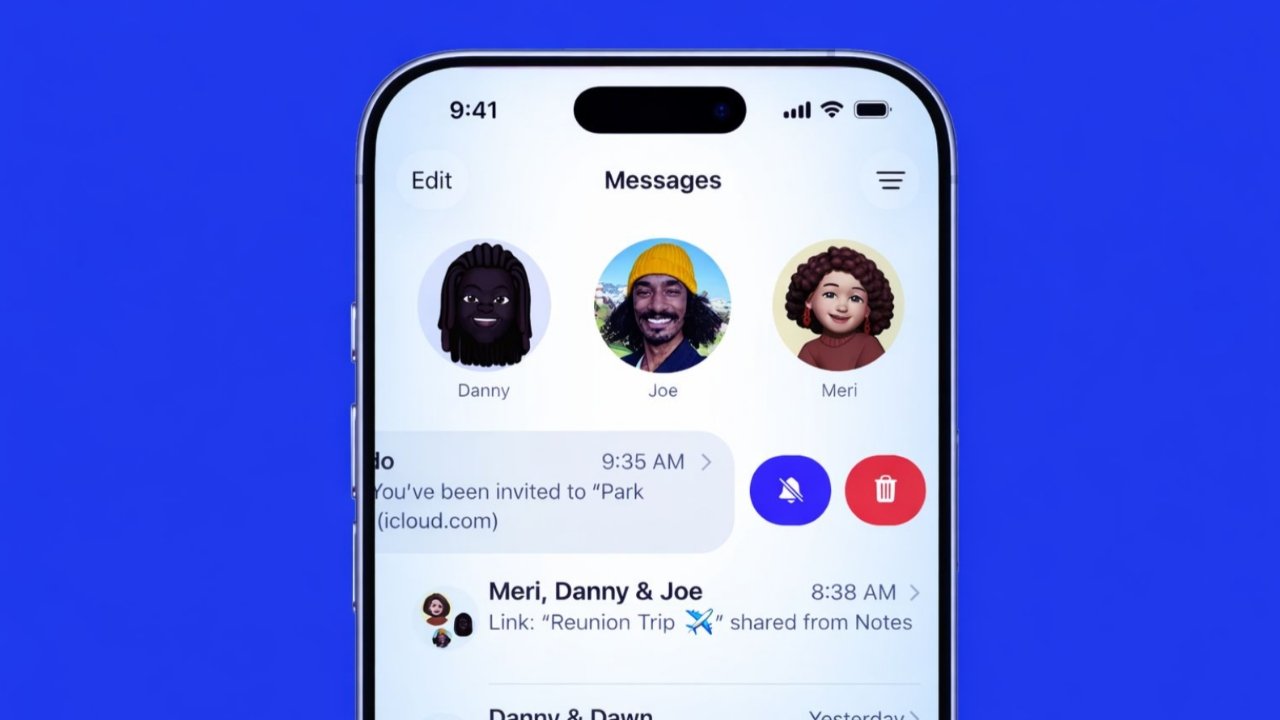

Rearrange and delete iMessage apps on iPhone or iPad to keep frequently used Messages tools easier to access. iMessage apps let you share photos, stickers, audio, locations, polls, and other content without leaving a conversation.
On current versions of iOS and iPadOS, iMessage apps are available from the Plus (+) button beside the message field.
How the iMessage App Drawer Works
Open the Messages app and enter an existing conversation or start a new one.
Tap the Plus (+) button beside the message field to see your available iMessage apps and features. Swipe up to view additional options.
The available tools can vary depending on your device, software version, region, and installed apps.
Types of Apps Available in Messages
The iMessage app drawer includes Apple’s built-in tools as well as compatible third-party iMessage apps.
Common Messages apps and features include:
- Photos
- Camera
- Stickers
- Audio
- Location
- Polls
- Compatible third-party iMessage apps
Some features may not be available on every iPhone or iPad or in every region.
How to Rearrange iMessage Apps
You can rearrange iMessage apps so the tools you use most often are easier to reach.
Follow these steps:
- Open the Messages app.
- Start a new conversation or open an existing one.
- Tap the Plus (+) button.
- Touch and hold the app you want to move until its icon shrinks slightly.
- Drag the app to your preferred position.
- Release it when it reaches the location you want.
The change is applied immediately, so there is no separate save button.
To move an app to another page, drag it toward the top or bottom edge of the menu and wait briefly for the next page to appear. Then place the app in your preferred position.
Important Notes
- iMessage apps are rearranged individually.
- You do not need to save the layout manually.
- Available apps can differ depending on the apps and features installed on your device.
How to Turn Off or Remove iMessage Apps
You do not need to delete an entire iPhone or iPad app simply because you no longer want its iMessage app to appear in Messages.
To turn an iMessage app off, go to:
Settings → Apps → Messages → iMessage Apps
Select the app and turn it off.
Turning an iMessage app off removes it from your available iMessage apps in Messages without necessarily deleting the associated app from your device.
If the iMessage extension belongs to an installed app and you want to remove that app completely, you can delete the associated app from your iPhone or iPad.
You can also remove an app from the Home Screen without deleting it if you simply want to reduce Home Screen clutter.
If you change your mind later, compatible apps can be downloaded again from the App Store.
How to Download New iMessage Apps
You can download additional apps designed to work inside Messages.
Follow these steps:
- Open the Messages app.
- Start a new conversation or open an existing conversation.
- Tap the Plus (+) button.
- Choose Store.
- Find the iMessage app you want.
- Tap Get for a free app or tap the displayed price for a paid app.
- Complete the installation if prompted.
After installation, return to Messages and open the Plus (+) menu to access the app.
Some apps may offer additional purchases or features after installation.
What Is the Difference Between Turning Off and Deleting an iMessage App?
Turning off an iMessage app and deleting its associated app are different actions.
When you turn an iMessage app off through:
Settings → Apps → Messages → iMessage Apps
the app stops appearing among your available iMessage apps, but its associated iPhone or iPad app can remain installed.
Deleting the associated app removes the main app from your device as well.
If you only want to clean up the Messages menu, turning the iMessage app off is usually enough.
Final Thoughts
You can rearrange iMessage apps directly from the Plus (+) menu in Messages. Touch and hold an app, then drag it to your preferred position.
If you no longer want an iMessage app to appear, go to Settings → Apps → Messages → iMessage Apps and turn it off. Deleting the associated iPhone or iPad app is only necessary when you want to remove the app itself from your device.
Sources
Apple Support — Use iMessage apps on your iPhone and iPad
Apple iPhone User Guide — Use iMessage apps in Messages on iPhone
Last verified: September 9, 2026