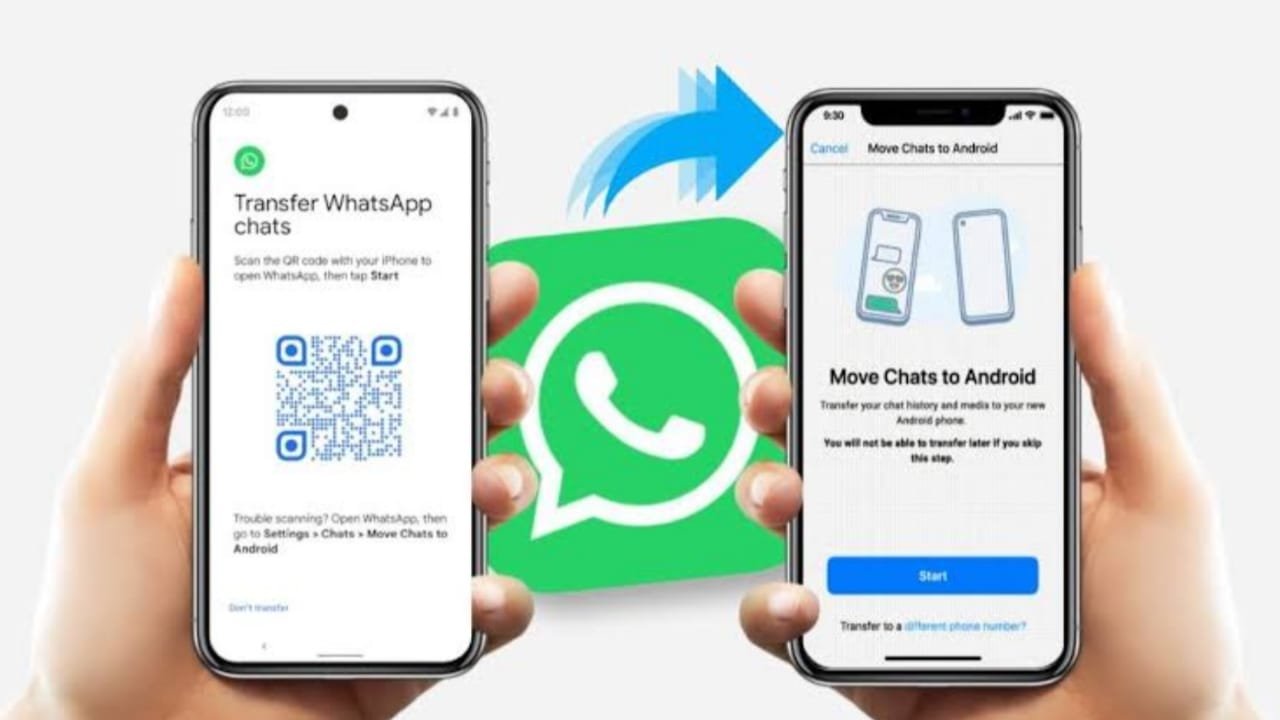

WhatsApp Chat History Transfer from Android to iPhone is now easier because WhatsApp officially supports migration through Apple’s Move to iOS app.
This method can transfer your chats, photos, videos, voice messages, account information, settings, and other supported WhatsApp data. However, you need to meet a few requirements before starting the process.
Related Article: Set Pattern Lock and All Types of Lock on Smartphone
Key Takeaways
- WhatsApp officially supports Android-to-iPhone transfer using Move to iOS.
- The iPhone must be new or factory reset.
- You must use the same phone number on the new iPhone.
- Third-party migration apps are not officially supported by WhatsApp.
- Exported chats can be read outside WhatsApp but cannot be restored inside the app.
WhatsApp Chat History Transfer from Android to iPhone
The official way to transfer WhatsApp chats from Android to iPhone is through Apple’s Move to iOS app.
Your Android phone must run Android 5.0 or later, while the iPhone must have iOS 15.5 or later.
You should also update WhatsApp to the latest available version on both devices before starting.
Requirements Before Starting
Make sure the following requirements are met:
- Android 5.0 or later
- iOS 15.5 or later
- Latest available WhatsApp version on both devices
- Move to iOS installed on the Android phone
- Same phone number on both devices
- New or factory-reset iPhone
- Both phones connected to power
- Both devices connected to the same Wi-Fi network
- Enough free storage on the iPhone
If your iPhone is already set up, you normally need to erase it before using Move to iOS.
How to Transfer WhatsApp Chats to iPhone
Follow these steps:
- Install Move to iOS on your Android phone.
- Turn on your new or factory-reset iPhone.
- Continue the setup until you reach the Transfer Your Apps & Data screen.
- Choose From Android.
- A code will appear on your iPhone.
- Enter this code in the Move to iOS app on Android.
- Follow the instructions until you reach the data transfer screen.
- Select WhatsApp.
- Tap Start on your Android phone.
- Wait while WhatsApp prepares your data.
- Tap Next when the process finishes.
- Continue the transfer using Move to iOS.
- Wait until the iPhone confirms that the transfer is complete.
- Finish setting up your iPhone.
- Download WhatsApp from the App Store.
- Sign in using the same phone number.
- Follow the instructions to import your transferred chats.
Do not delete WhatsApp or reset your Android phone until you have confirmed that your important chats are available on the iPhone.
What WhatsApp Data Can Be Transferred?
The official migration method can transfer most important WhatsApp information, including:
- Account information
- Profile photo
- Individual chats
- Group chats
- Communities
- Chat history
- Photos and videos
- Voice messages
- WhatsApp settings
- Supported Channel updates
This allows most users to continue their WhatsApp conversations on the new iPhone without manually saving each chat.
What Does Not Transfer?
Some WhatsApp information does not move during Android-to-iPhone migration.
This includes:
- WhatsApp call history
- Your display name
- Some media received through WhatsApp Channels
WhatsApp Business transfers may also have different limitations, so check the latest official WhatsApp instructions before moving important business data.
Do You Need a Google Drive Backup?
You do not need to restore a Google Drive WhatsApp backup directly on the iPhone.
Google Drive backups are mainly used when restoring WhatsApp to another Android device.
For Android-to-iPhone migration, WhatsApp uses the Move to iOS process instead.
Keep your old Android phone available until you confirm that all important chats and media have transferred successfully.
Can You Transfer WhatsApp Without Resetting the iPhone?
The official Move to iOS method requires the destination iPhone to be new or factory reset.
If your iPhone is already being used, you normally need to erase it and start the setup process again.
Before resetting an iPhone, make sure important photos, contacts, files, and other personal information are backed up.
Should You Use Third-Party WhatsApp Transfer Tools?
Some desktop tools claim they can move WhatsApp data without resetting the iPhone.
However, WhatsApp does not officially support other migration apps and warns that they may cause transfer problems.
For this reason, the official Move to iOS method is the safer option.
You should also be careful before giving unknown software access to private WhatsApp chats, backups, or account information.
Export a WhatsApp Chat Without a Computer
WhatsApp also lets you export individual conversations.
This is useful if you only want to save a readable copy of a chat.
Follow these steps on Android:
- Open WhatsApp.
- Open the chat you want to export.
- Tap the three-dot menu.
- Choose More.
- Tap Export chat.
- Select Without media or Include media.
- Choose where you want to save or send the exported chat.
You can send the file through email or another supported sharing option.
Important Limitation
An exported chat cannot be restored inside WhatsApp.
It is only a readable copy of the conversation.
Therefore, use Export chat when you want to save a conversation for reference, not when you want to continue the same chat normally on your new iPhone.
What to Do if the Transfer Fails
If WhatsApp migration does not complete successfully, try these checks:
- Keep both devices connected to power.
- Make sure both phones remain connected to Wi-Fi.
- Check that the iPhone has enough storage.
- Update WhatsApp on both devices.
- Update the Move to iOS app.
- Restart both phones and try again.
- Do not erase your Android phone while troubleshooting.
If your iPhone setup is already complete, you may need to reset it and repeat the Move to iOS process.
Check Your Chats Before Erasing the Old Phone
After the transfer finishes, open WhatsApp on your iPhone and check important data.
Look for:
- Individual chats
- Group conversations
- Photos and videos
- Voice messages
- Documents
- Recent messages
Keep your Android phone until you are confident that everything important has transferred properly.
The End Note
WhatsApp Chat History Transfer from Android to iPhone is officially supported through Apple’s Move to iOS app.
The iPhone must be new or factory reset, and you need to use the same phone number when signing in to WhatsApp on the new device.
Most chats and media can be transferred, but some information such as WhatsApp call history does not move.
For the safest transfer, use the official WhatsApp and Apple migration process instead of unsupported third-party tools.