
It is possible to turn an old phone into a security camera with a simple setup. Many people upgrade smartphones before their previous devices stop working, leaving usable phones unused.
Instead of letting an old phone sit in a drawer, you can use it as a basic indoor monitoring camera. With a reliable internet connection and a compatible camera app, you can check on pets, rooms, entrances, or other areas remotely.
Key Takeaways
- An old Android phone or iPhone can work as a basic security camera.
- The camera phone needs a stable internet connection and reliable power.
- Apps such as AlfredCamera can connect an old Camera device with your current Viewer device.
- Some features are free, while advanced recording, detection, or storage features may require a paid plan.
- Continuous charging requires proper ventilation to reduce heat and battery stress.
Step 1: Prepare Two Phones for Setup
You first need two devices: your old phone and the phone you currently use.
The old phone will work as the Camera device, while your current phone will act as the Viewer device.
Make sure the old phone can still:
- Connect reliably to Wi-Fi.
- Run the security-camera app you choose.
- Use its camera normally.
- Stay connected to a stable power source.
Tablets may also work with some camera apps.
Depending on the app and plan you use, the Viewer device can receive motion or activity alerts and access the live camera feed remotely.
Step 2: Install and Connect a Camera App
Download a trusted security-camera app from the Google Play Store or Apple App Store.
One popular option is AlfredCamera, which is specifically designed to turn spare smartphones and tablets into security cameras.
Its setup uses one device as the Camera and another as the Viewer.
A typical setup works like this:
- Install AlfredCamera on both devices.
- Sign in or pair the two devices.
- Set the old phone as the Camera.
- Set your current phone as the Viewer.
- Allow the required camera, microphone, and notification permissions.
- Test the live video feed before mounting the old phone.
AlfredCamera supports features such as live viewing, activity detection, notifications, two-way talk, and recording options.
However, feature availability depends on the free or paid plan being used. Some advanced detection, recording, video quality, and storage options require a Premium subscription.
You can also consider other maintained monitoring apps, such as AtHome Camera or BabyCam, depending on your needs.
Before installing any camera app, check its recent updates, privacy policy, permissions, and user reviews.
Step 3: Place the Camera Device Correctly
Camera placement is one of the most important parts of the setup.
Useful indoor locations may include:
- Entryways.
- Living rooms.
- Hallways.
- Pet areas.
- Baby monitoring areas.
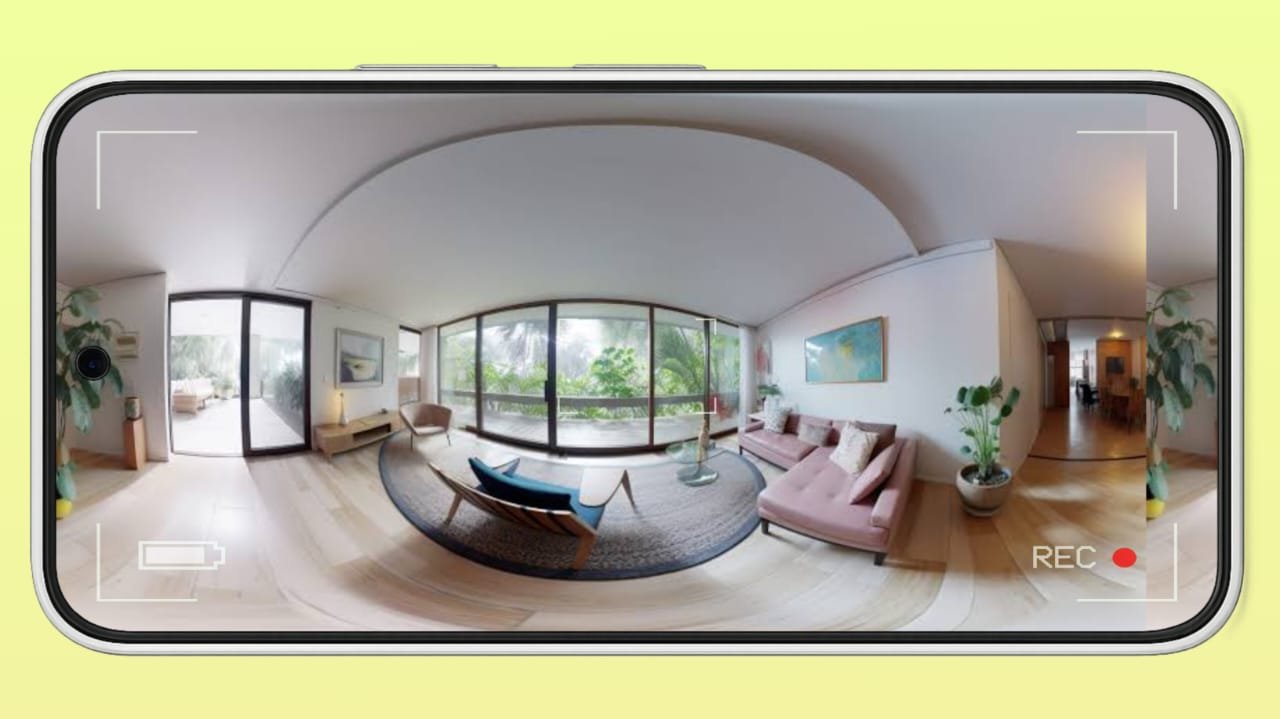
Place the phone where its camera has a clear view of the area.
Keep the Camera device within a strong Wi-Fi signal range. A weak connection can cause the live feed to disconnect or delay notifications.
For long-term monitoring, connect the phone to a reliable power source.
Avoid relying on a power bank for permanent monitoring because it will eventually need to be recharged.
Keep the Phone Safe While Charging
Continuous video streaming and charging can generate heat, especially on older phones.
To reduce overheating risks:
- Keep the phone away from direct sunlight.
- Do not cover the phone with cloth or other materials.
- Remove a thick case if the device becomes hot.
- Keep airflow around the phone.
- Use a reliable charger and cable.
- Stop using the device if the battery is swollen or damaged.
- Check the phone periodically for excessive heat.
If the phone becomes unusually hot during continuous operation, disconnect it and inspect the battery and charger before continuing.
Step 4: Test and Adjust Your Setup
After positioning the Camera device, open the Viewer app and test the live feed.
Check:
- Camera angle.
- Video quality.
- Internet connection.
- Motion or activity detection.
- Notifications.
- Audio quality.
- Night or low-light performance.
If the app allows it, adjust detection sensitivity or detection zones to reduce unnecessary alerts.
For Android camera devices, some apps may also require changes to battery optimization or background-app settings so the operating system does not stop the camera app when the screen is off.
The exact settings vary depending on the phone manufacturer.
Step 5: Know the Benefits and Limitations
Using an old phone as a security camera can reduce the need to purchase a separate camera for basic indoor monitoring.
You can also use multiple compatible old phones if the app and your subscription plan support additional Camera devices.
However, this setup has several limitations.
Older phones may have:
- Lower video quality.
- Poor low-light performance.
- Battery degradation.
- Overheating during continuous operation.
- Limited storage.
- Unstable Wi-Fi.
- No dedicated infrared night vision.
- Limited weather resistance.
Most smartphones are not designed to replace dedicated outdoor security cameras.
Do not place a normal phone outdoors unless it has suitable weather protection and can operate safely in the expected temperature and moisture conditions.
Best Apps for Turning an Old Phone Into a Security Camera
AlfredCamera
AlfredCamera is one of the most established apps for this purpose.
It supports:
- Live viewing.
- Activity detection.
- Notifications.
- Two-way talk.
- Event recording.
- Low-light filtering.
- Multiple Camera devices depending on the plan.
The service has a free tier, but some features and higher camera limits require a paid subscription.
AtHome Camera
AtHome Camera is another option for turning phones and computers into remote monitoring devices.
Its available features include remote video monitoring and detection-related functions.
Check the current app listing and subscription options before setting it up because features can change between versions.
BabyCam
BabyCam is more focused on baby monitoring than general home security.
It can connect phones and other supported devices for live monitoring and may be a better choice if your primary goal is watching a baby rather than setting up a general security system.
Privacy and Security Tips
Remember that a phone used as a security camera may continuously capture video or audio from your home.
For better privacy:
- Download apps only from trusted app stores.
- Use a strong password for the associated account.
- Enable additional account security options when available.
- Keep both devices and the camera app updated.
- Review camera and microphone permissions.
- Avoid sharing camera access with unnecessary accounts.
- Check how recordings are stored and how long they are retained.
- Avoid placing cameras in private areas where people reasonably expect privacy.
If cloud recording is enabled, review the provider’s privacy and storage policies before uploading sensitive footage.
The End Note
An old smartphone can be turned into a useful indoor monitoring camera instead of being left unused.
You mainly need a compatible camera app, a stable internet connection, proper placement, and a reliable power source.
Apps such as AlfredCamera can provide live viewing, activity alerts, recording, and other monitoring features, although some functions may require a paid plan.
For long-term use, pay special attention to Wi-Fi stability, account security, and heat from continuous charging.
An old phone can be useful for basic monitoring, but it should not be treated as a complete replacement for a dedicated security system when reliability is critical.