How to Turn On Voice Isolation on Apple iPhone and iPad in 2026
Turn on Voice Isolation on iPhone for better calls. Many users face noise problems during daily calls. Traffic sounds and people talking disturb voice clarity.
This creates confusion and results in repeated sentences. Apple created this feature to fix such problems. It improves voice clarity using smart technology.
Related Article: How to Convert Images to PDF Without Apps: A Step-by-Step Complete Guide
Turn On Voice Isolation on iPhone: What It Means
Voice Isolation is a useful audio feature. It improves your voice during calls and recordings. It reduces unwanted sounds from your surroundings clearly.
Apple introduced this feature with the iOS 15 update first. Later, it improved with the iOS 16.4 version release. Now, it supports normal phone calls as well.
This feature uses artificial intelligence technology smartly. It detects your voice and removes background noise. This always makes your voice sound very clear.
Without this feature, calls use standard microphone mode. Standard mode sends all sounds together clearly. It includes noise and your voice both together.
Voice Isolation changes this completely for users. It filters unwanted sounds like traffic or wind. It keeps your voice as the main sound.
This feature works only when the microphone is active. It appears during calls or recording sessions only. You cannot find it in settings directly.
How Voice Isolation Works
Voice Isolation works using advanced software processing. It studies audio input during active calls carefully. It separates your voice from background noise clearly. Then it removes unnecessary sounds instantly. It focuses only on your speech during conversation. This helps the listener understand your words easily.
Sounds It Can Remove
- Voice Isolation removes many common noise types.
- Traffic noise from busy roads nearby.
- People are talking loudly around your location.
- Wind noise during outdoor calls.
- Fan or machine noise inside rooms.
- Office noise in busy working areas.
This helps create a better calling experience.
Requirements and Support
Before using this feature, check the basic requirements carefully. Not all devices support this feature properly.
Supported Devices
Voice Isolation works on modern Apple devices only. Older devices cannot use this feature correctly. Supported devices include the models below:
- iPhone XR, XS, and newer models.
- iPad eighth generation and later models.
- iPad Pro models with advanced processors.
- iPad Air third generation and newer.
- iPad mini fifth generation and newer.
Your device must have an A12 Bionic chip inside. Without this chip, the feature will not work properly.
iOS Version Requirements
Different features need different iOS versions installed.
- FaceTime and apps need the iOS 15 version.
- Phone calls need the iOS 16.4 version installed.
- Recording apps need iOS 26 or later.
Make sure your iPhone has the latest updates installed.
Supported Apps
Voice Isolation works in many popular apps today.
- Default Phone app for cellular calls.
- FaceTime for video and audio calls.
- WhatsApp and other VoIP apps.
- Zoom for meetings and calls.
- Voice Memos and recording applications.
Support may vary depending on app updates.
Important Points About Support
Voice Isolation works separately for each application. You must enable it for every app session. Enabling it in one app does not apply everywhere.
Turn On Voice Isolation on iPhone: Steps to Enable
Voice Isolation is easy to enable during calls. Follow these steps carefully for the best results.
Step-by-Step Method
- Start a phone call or recording first.
- Swipe down from the screen’s top right corner.
- Open Control Center on your device.
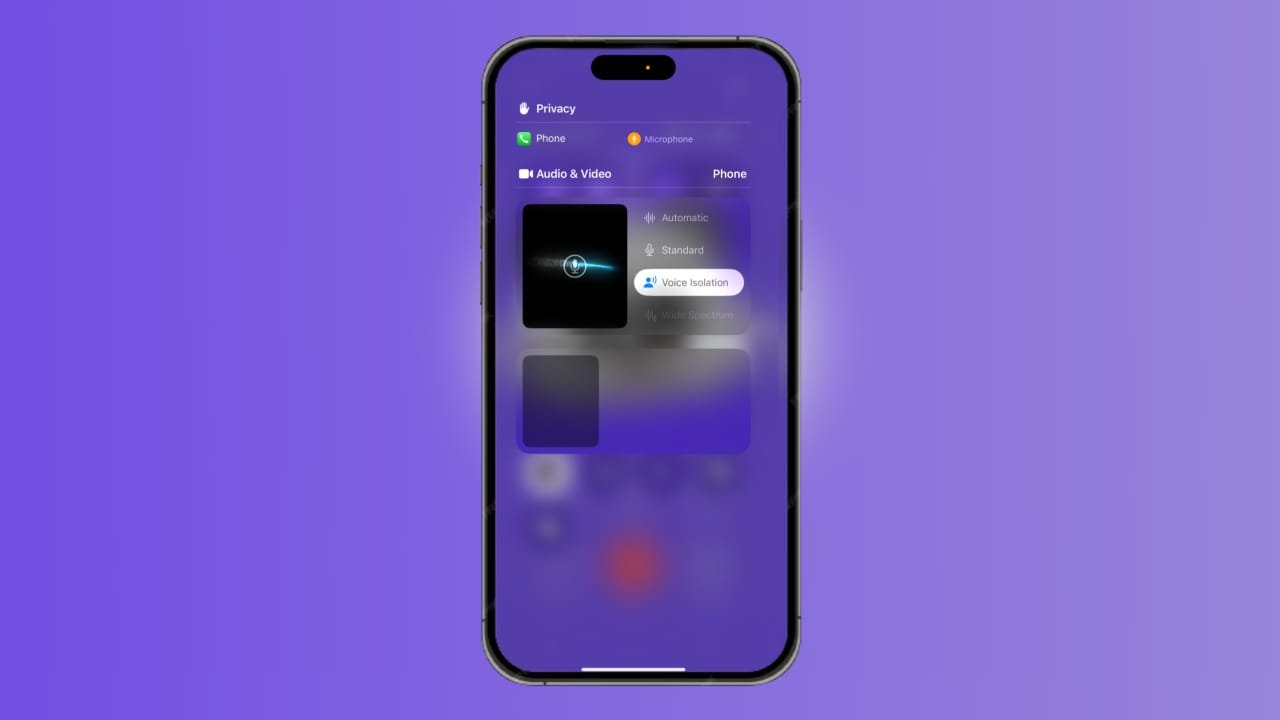
- Tap Mic Mode or App Controls option.
- Choose Voice Isolation from the available options.
- Close Control Center and continue your call.
- After enabling, noise reduces instantly during calls.
Where You Can Find This Option
You will see this option inside the Control Center. It appears only when the microphone is active. You cannot find it inside the Settings application menu.
Mic Mode Options Explained
iPhone gives three microphone modes for users.
- Standard Mode.
- Default option for all calls.
- Sends voice with background sounds together.
Voice Isolation Mode
- Removes background noise completely.
- Focuses clearly on your voice only.
Wide Spectrum Mode
- Captures all sounds clearly during calls.
- Useful for music sharing or group calls.
- Some iPhones also support automatic mode features.
Automatic mode
- Chooses the best option based on the situation.
Automatic Mode Details
The Automatic mode works on newer iOS versions. It adjusts microphone settings based on the environment.
For example, it may use Voice Isolation sometimes. Or it may switch to standard mode automatically.
Important Notes About Usage
- Voice Isolation does not turn on automatically.
- You must enable it for every call.
- It works only during active microphone usage.
- It resets after each call ends.
- It works with AirPods and wireless earbuds.
Best Usage Situations
Voice Isolation is very useful in many situations. It helps improve communication quality easily.
When You Should Use It
- Use this feature in noisy environments always.
- While taking calls in crowded public places.
- While working from cafés or public spaces.
- During outdoor calls with traffic noise.
- During online meetings and office discussions.
- While recording voice notes in noisy areas.
These situations always require clear voice communication.
Why It Improves Call Quality
Voice Isolation reduces noise interference during calls. It keeps your speech clear and understandable. This reduces the need to repeat sentences often. It saves time during important conversations.
Real Experience and Performance
Testing shows very good results with this feature. Voice clarity improves significantly in noisy environments.
Even in busy offices, it performs very well. Listeners hear your voice clearly always. This makes it useful for professionals and students.
Difference Between Modes
Standard mode sends all sounds without filtering. Voice Isolation removes noise and focuses the voice. Wide Spectrum captures everything, including background sounds. Choose the mode based on your current situation always.
As We Conclude
Turn on Voice Isolation on iPhone for clear calls. This feature reduces unwanted noise using smart technology. It works only on supported devices and versions.
You must always enable it during calls. It improves communication in noisy environments greatly. Use this feature for a better calling experience daily. It is simple, helpful, and very effective.