
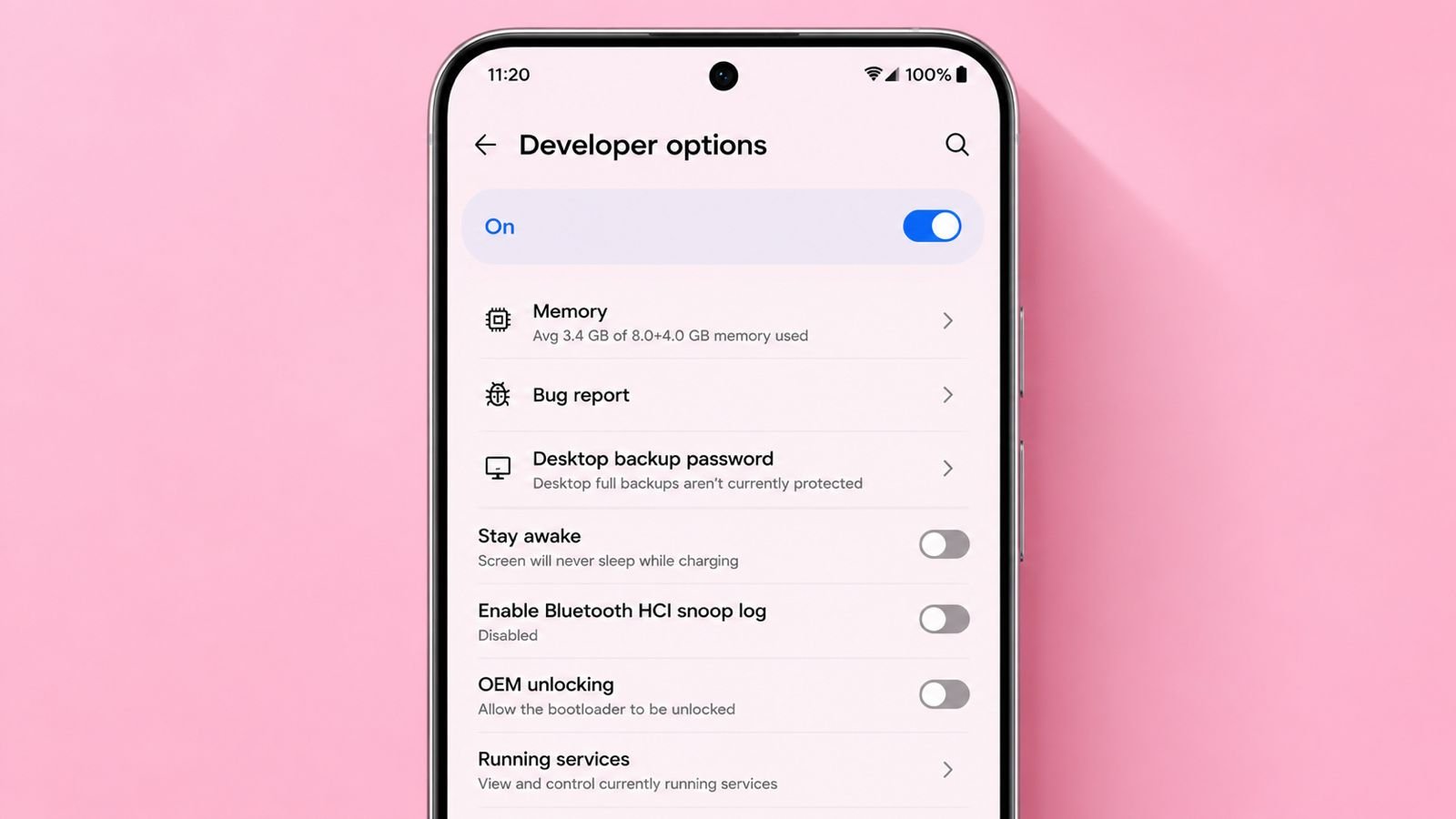

This hidden menu offers powerful Android testing features.
Developers and regular users can access useful tools. Enable it carefully, then disable after completing tasks.
Key Takeaways:
- Developer Options unlock advanced Android features and testing tools.
- Enable them by tapping Build Number seven times.
- Disable them after work for better security protection.
Switch On or Off Developer Options on Android Easily
Developer Options remain hidden on every Android device. This prevents accidental system changes and security problems. Open your phone’s Settings application first.
Find About Phone or About Device section. TECNO users should open My Phone instead. Xiaomi users should open Detailed Info and Specs.
Find Build Number or OS/MIUI Version option. Tap that option seven times quickly. Enter your screen lock if requested. A confirmation message will appear immediately afterward.
Return to the main settings page. Open System and select Developer Options. Samsung users first open the Software Information section.
Some Samsung phones show General settings instead. Google Pixel devices list options under System. Huawei devices also use System settings.
Xiaomi devices place options inside Additional Settings. Search Developer Options if unavailable immediately. Turn on Use Developer Options switch.
Enable USB Debugging whenever required for testing. Enable Wireless Debugging if supported. Android Studio requires these debugging options.
Development builds also depend on these settings. Testing apps outside the Play Store becomes possible.
On Android
Open your phone settings once again. Select Developer Options from available settings. Turn off the main switch completely.
Google Pixel hides options after disabling them. Samsung also removes the visible menu. Xiaomi users disable options inside Additional Settings.
USB Debugging should also remain disabled afterward. This improves overall phone security significantly. Never leave debugging enabled without reason.
Re-enable options using Build Number again. Infinix, TECNO, and Itel follow identical steps. Disable features after finishing development work.
Developer Options Features
Developer Options provide many useful Android features. Animation scale controls interface movement speed. Lower animation values improve slower devices.
Higher values create smoother visual effects. Enable Force 4x MSAA for better graphics. Weak hardware may reduce overall performance.
USB Debugging transfers commands from computers safely. Install custom software using debugging carefully. Create password-protected desktop backups through USB connections.
Forgotten passwords block backup file access. Mock Location hides your real position. Stay Awake keeps screens active while charging.
Show CPU Usage displays processor load instantly. Running Services shows memory-consuming background applications. Force apps onto supported SD cards.
Limit background processes to save memory. These features improve testing and troubleshooting tasks.
Beginners should change settings with extra care. Understanding these options saves valuable time later.
The End Note
Always understand each option before making changes. Turn everything off after completing your required tasks. Careful usage keeps your phone safe and stable.