

Opening a few browser tabs can quickly turn into dozens. After a while, finding the page you need becomes harder than opening it again from scratch.
Fortunately, modern mobile browsers now include useful ways to group, pin, search, close, and restore tabs. Chrome and Safari have especially good tab-management tools on Android, iPhone, and iPad, while Microsoft Edge also includes features that can help you return to browsing projects.
Here is how to organize tabs on the browsers you actually use on your phone.
Organize Tabs in Google Chrome on Android
Chrome on Android gives you several ways to manage a large number of open tabs without using desktop shortcuts or a mouse.
Create a Tab Group
Tab Groups are useful when several tabs belong to the same topic.
For example, you could create separate groups for:
- Work
- Shopping
- Travel
- Research
- News
To create a group:
- Open Chrome.
- Tap the Switch tabs button beside the address bar.
- Touch and hold a tab, or tap the three-dot menu.
- Tap Select tabs.
- Choose the tabs you want to keep together.
- Tap the menu again.
- Choose Group tabs.
Chrome places the selected pages together as one group.
You can then open the group whenever you need those pages again.
Drag Tabs Together on Android
There is also a quicker way to group a small number of tabs.
Open Chrome’s tab switcher, then touch and hold a tab and drag it onto another tab.
Chrome creates a group containing those pages.
This is useful when you only want to combine two or three related tabs without going through the selection menu.
Select Several Tabs at Once
If dozens of tabs have built up, you do not have to close or organize them individually.
Open:
Chrome > Switch tabs > More > Select tabs
Choose several tabs and then perform an available action such as:
- Group tabs
- Close tabs
- Share tabs
- Bookmark tabs
Bulk selection is one of the easiest ways to clean up a crowded Chrome tab screen.
Use Inactive Tabs in Chrome
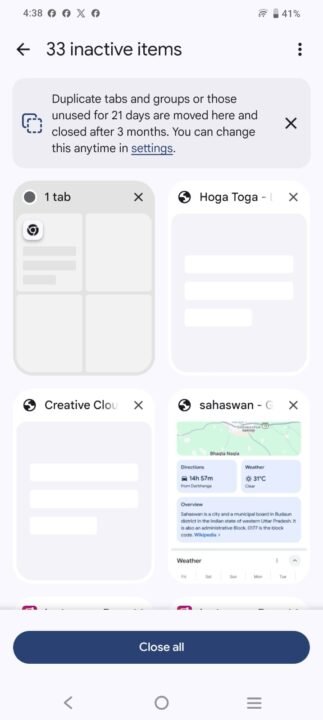
Chrome can separate tabs that you have not used for a while.
On Android, By default, Chrome can move tabs and tab groups that have not been used for 14 days into the Inactive tabs section. The timing can be changed in Chrome’s tab settings.
To check them:
- Open Chrome.
- Tap Switch tabs.
- Open Inactive tabs at the top of the tab grid.
From there, you can decide whether an old tab is still useful or should finally be closed.
This is better than leaving every old page mixed with the tabs you actually use each day.
Pin Important Chrome Tabs
Chrome can also pin frequently used tabs on supported mobile layouts.
A pinned page is easier to reach when you regularly return to the same website.
For example, you might pin:
- your email
- a work dashboard
- a frequently used tool
- a news site
- a project page
Touch and hold the tab and choose Pin tab when the option is available.
Pinning is better for pages you use repeatedly, while Tab Groups are better for collections of related pages.
Sync Chrome Tab Groups Across Devices
When you’re signed in to Chrome with the same Google Account, changes to Tab Groups are automatically saved and synced across supported devices..
This means a group you create on your Android phone may also be available when you use Chrome on another signed-in device.
This is helpful if you begin researching something on your phone and want to continue later on another device.
Organize Chrome Tabs on iPhone and iPad
Chrome on iPhone and iPad also supports Tab Groups.
Open Chrome and tap the Switch tabs button.
To create a group:
- Touch and hold a tab.
- Tap Add Tab to New Group.
- Enter a name for the group.
- Choose a color if you want.
- Tap Create Group.
You can also create a new group from the tab grid menu.
Naming the groups makes them much easier to understand when you have several open at the same time.
For example:
Work Research
Holiday Planning
Shopping
Articles to Read
Add Several Chrome Tabs to a Group on iPhone
You can organize several tabs together without moving each one separately.
From the tab grid:
- Tap the More button.
- Select the tabs you want.
- Tap Add To.
- Choose an existing Tab Group or create a new one.
- Tap Done.
Chrome also lets you move individual tabs between groups later.
Find Inactive Tabs on iPhone
Chrome on iPhone and iPad can move older tabs into an Inactive Tabs section.
Open the tab switcher and select Inactive Tabs to review them.
You can also control when Chrome treats a tab as inactive.
Open:
Chrome > More > Settings > Tabs and tab groups > Inactive
Choose the time period you prefer.
If you do not want Chrome to move old tabs automatically, choose the option that prevents inactive-tab movement.
Pin a Chrome Tab on iPhone
If there is a page you use often:
- Open the Chrome tab switcher.
- Touch and hold the tab.
- Tap Pin Tab.
Pinned tabs remain easier to reach from the tab switcher.
This works well for a small number of important pages. Pinning everything defeats the purpose.
Organize Tabs in Safari on iPhone
Safari also has proper Tab Groups on iPhone.
Instead of keeping work, shopping, entertainment, and research tabs in one long list, you can separate them into named groups.
To create a new Tab Group:
- Open Safari.
- Open All Tabs.
- Touch and hold a tab.
- Tap Move Tab.
- Choose New Tab Group.
- Enter a name.
- Tap Done.
You can create as many useful groups as you need.
Avoid creating a separate group for every tiny task, or the groups themselves will become difficult to manage.
Move Safari Tabs Between Groups
If a page is in the wrong group:
- Open All Tabs.
- Touch and hold the tab.
- Tap Move Tab.
- Select another Tab Group.
You can also create a new group directly from this menu.
This is useful when a random page turns into a larger research project.
Rearrange Safari Tabs
Safari lets you change the order of tabs inside a group.
Open the Tab Group and touch and hold a tab, then drag it to the position you want.
You can also use Arrange Tabs By to organize tabs automatically using the available sorting options.
For a small group, manual ordering usually works best.
For a very large group, automatic arrangement can make it easier to find pages.
Pin Important Tabs in Safari
Safari lets you pin frequently used tabs at the top of a Tab Group.
To pin one:
- Open the Tab Group.
- Touch and hold the tab.
- Tap Pin Tab.
A pinned tab remains easy to find even as more pages are added to the group.
Use this for websites you return to regularly rather than temporary pages.
Close All Tabs in a Safari Group
Sometimes organizing old tabs is not worth the effort.
If a group contains pages you no longer need, you can close them together.
Open the group’s tabs, then touch and hold Done and choose:
Close All [number] Tabs
Before doing this, check whether there are any pages you still need.
Restore a Recently Closed Safari Tab
Closed something by mistake?
Open Safari’s tab view and touch and hold the New Tab button.
Safari shows recently closed tabs that can be reopened.
This is useful when you accidentally close an important page while cleaning up your browser.
Use Safari Profiles for Work and Personal Browsing
Tab Groups organize pages inside Safari, but Profiles can separate entire types of browsing.
On current iPhones, Safari supports profiles such as:
- Personal
- Work
- School
Each profile can have separate history, tabs, favorites, and Tab Groups.
To create one:
- Open Settings.
- Tap Apps.
- Tap Safari.
- Choose New Profile.
- Enter a name.
- Choose an icon and color.
- Configure the Favorites folder and new-tab behavior.
- Tap Done.
Profiles are particularly useful when you use the same iPhone for both work and personal browsing.
Sync Safari Tabs Across Apple Devices
If Safari is enabled in iCloud, you can view open tabs from your other Apple devices.
Make sure all devices use the same Apple Account.
On iPhone, check:
Settings > [your name] > iCloud
Make sure Safari syncing is enabled.
You can then view tabs from supported iPhones, iPads, and Macs using the same account.
This is useful when you start reading or researching something on one device and want to continue on another.
Organize Tabs in Microsoft Edge on Mobile
Microsoft Edge on Android and iPhone has a mobile tab switcher that lets you move between and close open pages.
Do not confuse this with desktop Edge features such as vertical tabs, right-click tab menus, keyboard shortcuts, window naming, and desktop tab auto-grouping. Those instructions are mainly designed for computers.
On mobile, start by opening Edge’s tab view and close pages you no longer need instead of keeping every page indefinitely.
Use Edge Journeys to Return to Browsing Projects
Microsoft has also introduced Journeys in Edge mobile.
Journeys can organize parts of your browsing history into related topics, making it easier to return to something you were researching earlier.
For example, if you were researching:
- a holiday
- a laptop purchase
- a school topic
- a home project
Journeys may help bring related browsing activity back together instead of making you search through your entire history manually.
Microsoft is rolling out Journeys on Edge mobile, so the feature may not be available to every user yet. Availability can depend on the current Edge version, account, and rollout status..
Don’t Keep Tabs Open Just as Bookmarks
One of the biggest causes of tab clutter is using open tabs as a list of pages you might need someday.
If you do not plan to use a page again today or soon, consider bookmarking it instead.
A simple rule works well:
Need it now: Keep the tab open.
Need it later: Bookmark or save it.
Probably don’t need it: Close it.
This keeps the tab switcher focused on your current work.
Group Tabs by Task, Not by Website
A good Tab Group should represent a task or project rather than simply a website.
For example, instead of:
create:
Trip to Mumbai
and put your hotel, Maps, train, restaurant, and travel-guide pages inside it.
Instead of:
Shopping Sites
create:
New Laptop
and group product pages, reviews, specifications, and comparison articles together.
This makes a group useful when you return to it later.
Keep the Number of Groups Reasonable
Tab Groups can create a new problem if you create too many of them.
You probably do not need 25 groups containing two tabs each.
A simpler setup might be:
- Work
- Personal
- Shopping
- Research
- Read Later
Then create a temporary project-specific group when necessary.
Delete groups that are no longer useful.
Review Old Tabs Regularly
Every few days, spend a minute looking through the tab switcher.
Close:
- pages you already finished reading
- duplicate tabs
- old searches
- expired shopping pages
- temporary login screens
- pages you opened accidentally
Keeping the browser organized is much easier when you do a small cleanup regularly instead of waiting until hundreds of tabs have accumulated.
Do Too Many Tabs Make a Phone Slow?
Mobile browsers are designed to manage background tabs and may suspend inactive pages to reduce resource use.
That means having many tabs open does not necessarily make your phone immediately unusable.
However, a very large tab collection can still make browsing harder to manage and may increase memory or storage use depending on the browser, pages, and device.
The bigger everyday problem is often finding the page you need.
Organizing or closing unused tabs keeps the browser easier to navigate.
Best Way to Organize Mobile Browser Tabs
For most users, I would keep it simple:
- Create Tab Groups for active projects.
- Pin only the pages you use frequently.
- Close temporary searches when you finish with them.
- Bookmark pages you want to keep long term.
- Review inactive tabs occasionally.
- Use browser syncing if you switch between devices.
- Keep work and personal browsing separate when profiles are available.
You do not need a complicated tab-management system. The goal is simply to make the page you need easy to find.
Final Words
Organizing browser tabs on a phone is much easier when you use features made specifically for mobile instead of following desktop instructions.
Chrome on Android, iPhone, and iPad offers Tab Groups, bulk tab management, pinning, inactive tabs, and cross-device syncing. Safari provides Tab Groups, pinned tabs, profiles, and iCloud tab syncing. Microsoft Edge mobile also provides tools such as Journeys that can help you return to browsing projects.
Start by grouping the tabs you still need and closing the ones you do not. Once the browser contains only useful pages, keeping it organized takes much less effort.
Sources
- Google Chrome Help — Manage tabs in Chrome on Android
- Google Chrome Help — Manage tabs in Chrome on iPhone and iPad
- Apple Support — Organize tabs with Tab Groups in Safari on iPhone
- Apple Support — Create Safari profiles on iPhone
- Apple Support — View Safari tabs from another Apple device
- Microsoft Edge Blog — New updates to Edge across desktop and mobile
Last verified: August 26, 2026